> ## Documentation Index
> Fetch the complete documentation index at: https://docs.flexxible.com/llms.txt
> Use this file to discover all available pages before exploring further.
# Designer
**Designer** is the main environment for creating, configuring, and managing the lifecycle of microservices within an organization. From this interface, users can define new microservices, edit existing ones, archive them temporarily, or delete them permanently, according to operational needs.
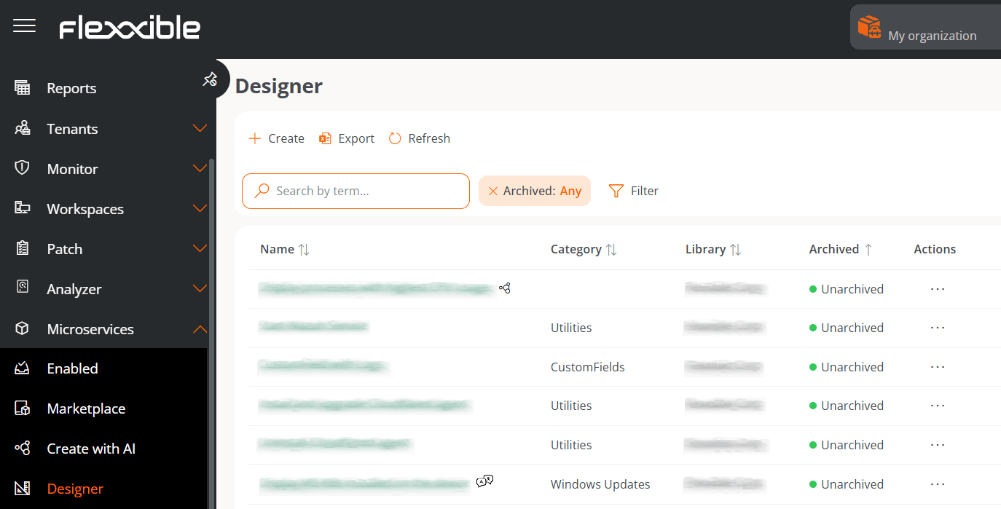 The list view shows a table with the microservices created, along with the following information:
* **Name.** Name of the microservice.
* **Category.** Directory or group of microservices. Categories must be predefined in Organization.
* **Library.** Organization to which the microservice belongs.
* **Archived.** Indicates whether the microservice is *Archived* or *Active*. Archived ones are not available for use, while active ones are.
* **Actions.** Displays three options:
* **View details.** Shows the expanded information of the microservice.
* **Edit.** Allows you to modify the microservice's configuration.
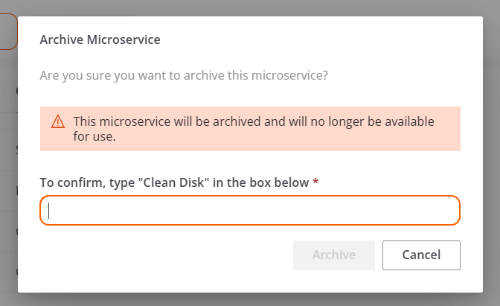
* **Archive** / **Activate.** Opens a confirmation window to archive or activate the microservice, according to its current state.
Confirmation window to archive a microservice:
The list view shows a table with the microservices created, along with the following information:
* **Name.** Name of the microservice.
* **Category.** Directory or group of microservices. Categories must be predefined in Organization.
* **Library.** Organization to which the microservice belongs.
* **Archived.** Indicates whether the microservice is *Archived* or *Active*. Archived ones are not available for use, while active ones are.
* **Actions.** Displays three options:
* **View details.** Shows the expanded information of the microservice.
* **Edit.** Allows you to modify the microservice's configuration.
* **Archive** / **Activate.** Opens a confirmation window to archive or activate the microservice, according to its current state.
Confirmation window to archive a microservice:
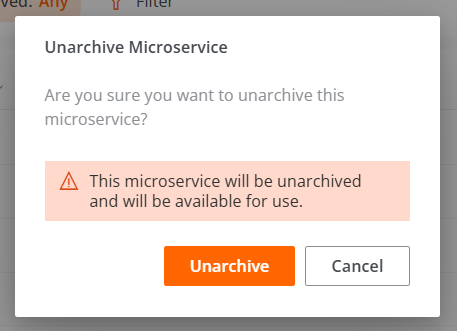
 Confirmation window to activate a microservice:
 ## Create a microservice
The process of creating a microservice is carried out through a wizard divided into four phases, which guide the user step by step until the configuration is complete.
### Phase 1 - Initial configuration
1. Go to **Microservices** → **Designer**.
2. Click **New**.
3. The wizard will open and prompt you to enter the following information:
## Create a microservice
The process of creating a microservice is carried out through a wizard divided into four phases, which guide the user step by step until the configuration is complete.
### Phase 1 - Initial configuration
1. Go to **Microservices** → **Designer**.
2. Click **New**.
3. The wizard will open and prompt you to enter the following information:
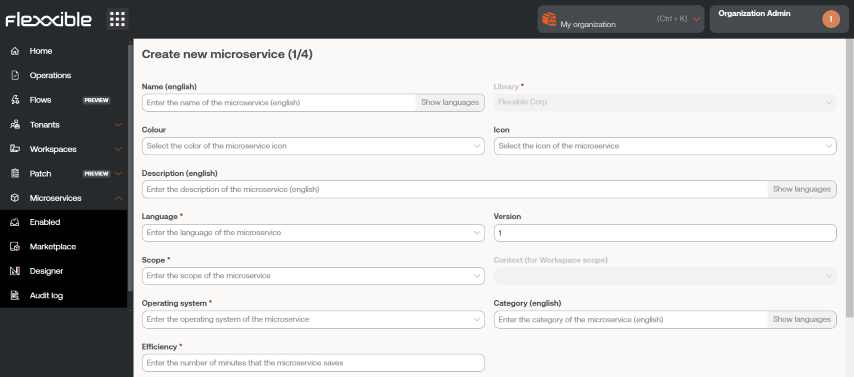 * **Name.** Name of the microservice.
* **Color.** Color of the representative icon.
* **Icon.** Type of associated icon.
* **Description.** Brief explanation of its functionality.
* **Language.** Programming language used.
* **Version.** Version number.
* **Scope.** Execution scope. You can select *Workspace* (context *System* or *Session*) or *Platform*.
* **Operating system.** Operating system for which it is designed.
* **Category.** Directory or group of microservices in which it will be housed. Categories must be predefined in Organization.
* **Efficiency.** Number of minutes the user saves with each execution.
4. Click **Next**.
The name of a microservice configured for execution by the end user **must not contain special characters** such as **\ / : \* ? " \< >** or specific characters of certain languages that may vary depending on the keyboard layout.
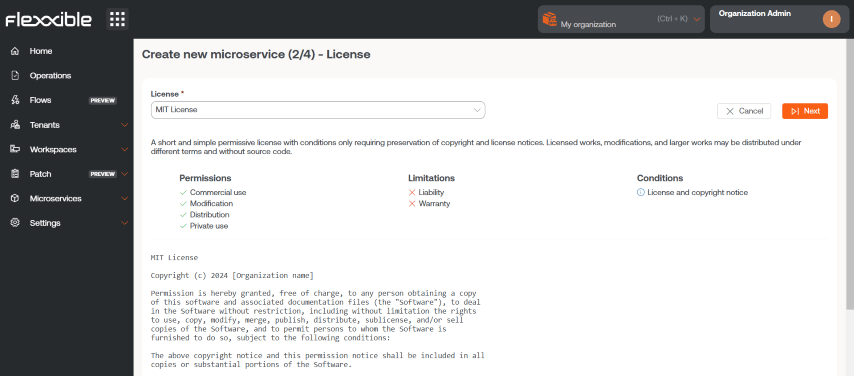
### Phase 2 - License
1. Choose from the drop-down options the type of license the microservice will have.
2. Click **Next**.
* **Name.** Name of the microservice.
* **Color.** Color of the representative icon.
* **Icon.** Type of associated icon.
* **Description.** Brief explanation of its functionality.
* **Language.** Programming language used.
* **Version.** Version number.
* **Scope.** Execution scope. You can select *Workspace* (context *System* or *Session*) or *Platform*.
* **Operating system.** Operating system for which it is designed.
* **Category.** Directory or group of microservices in which it will be housed. Categories must be predefined in Organization.
* **Efficiency.** Number of minutes the user saves with each execution.
4. Click **Next**.
The name of a microservice configured for execution by the end user **must not contain special characters** such as **\ / : \* ? " \< >** or specific characters of certain languages that may vary depending on the keyboard layout.
### Phase 2 - License
1. Choose from the drop-down options the type of license the microservice will have.
2. Click **Next**.
 ### Phase 3 - README
1. Enter the detailed description of the microservice in [Markdown](https://www.markdownguide.org/) format.
2. Click **Next**.
To create a heading with Markdown, simply start the line with `# Title`. Below are some examples of its syntax:
| Element | Markdown syntax | Preview |
| ------- | --------------- | --------------------------------------------------------------------------------------------------------------------------------------------------------------------------------------------------------------------------------------------------------------------------------------------------------------------------------------------------------------------------------------------------------------------------------------------------------------------------------------------------------------------------------------------------------------------------------------------------------------------------------------------------------------------------------------------------------------------------------------------------------------------------------------------------------------------------------------------------------------------------------------------------------------------------------------------------------------------------------------------------------------------------------------------------------------------------------------------------------------------------------------------------------------------------------------------------------------------------------------------------------------------------------------------------------------------------------------------------- |
| Bold | \*\*bold\*\* | **bold** |
| Italic | \*italic\* | *italic* |
| List | - List item | - List item |
| Link | \[text]\(url) | [text](https://www.markdownguide.org/) |
| Image | !\[alt]\(url) |
### Phase 3 - README
1. Enter the detailed description of the microservice in [Markdown](https://www.markdownguide.org/) format.
2. Click **Next**.
To create a heading with Markdown, simply start the line with `# Title`. Below are some examples of its syntax:
| Element | Markdown syntax | Preview |
| ------- | --------------- | --------------------------------------------------------------------------------------------------------------------------------------------------------------------------------------------------------------------------------------------------------------------------------------------------------------------------------------------------------------------------------------------------------------------------------------------------------------------------------------------------------------------------------------------------------------------------------------------------------------------------------------------------------------------------------------------------------------------------------------------------------------------------------------------------------------------------------------------------------------------------------------------------------------------------------------------------------------------------------------------------------------------------------------------------------------------------------------------------------------------------------------------------------------------------------------------------------------------------------------------------------------------------------------------------------------------------------------------------- |
| Bold | \*\*bold\*\* | **bold** |
| Italic | \*italic\* | *italic* |
| List | - List item | - List item |
| Link | \[text]\(url) | [text](https://www.markdownguide.org/) |
| Image | !\[alt]\(url) |  |
| Code | \`code\` | `code` |
### Phase 4 - Code
1. Enter the microservice code.
2. Click **Next** to finish.
Once the phases are completed, the microservice will appear in the section's main table.
### Technical considerations
Although microservices allow the execution of any CMD or PowerShell command on Windows devices, the commands sent will be executed from the local administrator or from the user session, depending on the scope assigned to them. This may mean that some cmdlets do not have the expected output in relation to the execution performed. For this reason, if you are developing code in PowerShell, a series of considerations must be taken into account:
* It is recommended that the version of PowerShell installed on the devices be the same as the one used to develop the microservices.
* Microservices can be executed under the user session identity or from the local administrator.
* **Execution from the local administrator.** In `Scope` you can configure `Workspaces` or `Platform`, which greatly facilitates interacting with processes, services, and acting with administrative permissions on the device, but can make it difficult to access specific information about the user or their session.
* **Execution from the user session.** In `Scope` you can configure `Sessions`, which is very useful for accessing user information such as the registry, information contained in the profile, etc. Note that the script will run with the permission level the user has, so if the user is not a local administrator, they will have certain limitations when trying to act at the system level.
* When you want to display some message in the microservice output, it is recommended to use the `Write-Output` cmdlet instead of `Write-Host`.
* The execution output can be consulted in Operations.
### Enable a microservice
To enable a microservice:
1. Go to **Microservices** → **Designer**.
2. Find the microservice in the list and click on it.
3. Click the **Enable** button (located at the top right).
4. Once enabled, the microservice will be displayed with a green dot in the Marketplace section.
## Delete a microservice
Before deleting a microservice, the following conditions must be taken into account:
* Only microservices that have been previously archived can be deleted.
* The microservice must not be active in any tenant.
* No flow can have it assigned.
Once these requirements are met, you can proceed with the final deletion of the microservice through the following steps:
1. Go to **Microservices** → **Designer**.
2. In the microservices table, choose the desired element and click **Actions** → **Archive**.
3. Confirm the action in the pop-up window to complete the archiving.
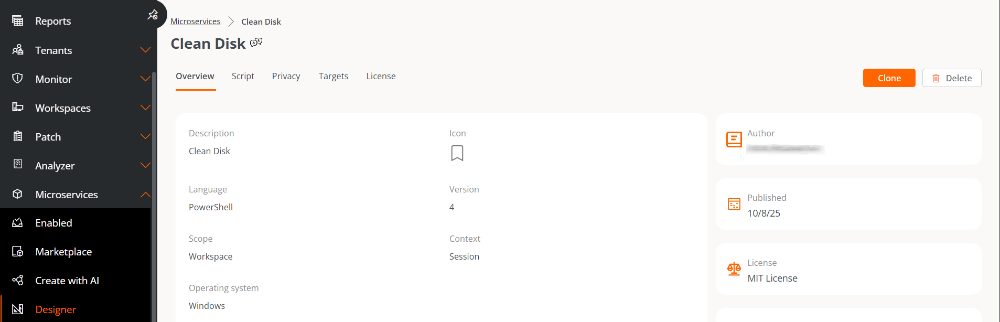
4. Return to the table and click on the name of the microservice you just archived.
5. From the **Overview** tab, click the **Delete** button.
|
| Code | \`code\` | `code` |
### Phase 4 - Code
1. Enter the microservice code.
2. Click **Next** to finish.
Once the phases are completed, the microservice will appear in the section's main table.
### Technical considerations
Although microservices allow the execution of any CMD or PowerShell command on Windows devices, the commands sent will be executed from the local administrator or from the user session, depending on the scope assigned to them. This may mean that some cmdlets do not have the expected output in relation to the execution performed. For this reason, if you are developing code in PowerShell, a series of considerations must be taken into account:
* It is recommended that the version of PowerShell installed on the devices be the same as the one used to develop the microservices.
* Microservices can be executed under the user session identity or from the local administrator.
* **Execution from the local administrator.** In `Scope` you can configure `Workspaces` or `Platform`, which greatly facilitates interacting with processes, services, and acting with administrative permissions on the device, but can make it difficult to access specific information about the user or their session.
* **Execution from the user session.** In `Scope` you can configure `Sessions`, which is very useful for accessing user information such as the registry, information contained in the profile, etc. Note that the script will run with the permission level the user has, so if the user is not a local administrator, they will have certain limitations when trying to act at the system level.
* When you want to display some message in the microservice output, it is recommended to use the `Write-Output` cmdlet instead of `Write-Host`.
* The execution output can be consulted in Operations.
### Enable a microservice
To enable a microservice:
1. Go to **Microservices** → **Designer**.
2. Find the microservice in the list and click on it.
3. Click the **Enable** button (located at the top right).
4. Once enabled, the microservice will be displayed with a green dot in the Marketplace section.
## Delete a microservice
Before deleting a microservice, the following conditions must be taken into account:
* Only microservices that have been previously archived can be deleted.
* The microservice must not be active in any tenant.
* No flow can have it assigned.
Once these requirements are met, you can proceed with the final deletion of the microservice through the following steps:
1. Go to **Microservices** → **Designer**.
2. In the microservices table, choose the desired element and click **Actions** → **Archive**.
3. Confirm the action in the pop-up window to complete the archiving.
4. Return to the table and click on the name of the microservice you just archived.
5. From the **Overview** tab, click the **Delete** button.
 6. Confirm the deletion in the corresponding pop-up window.
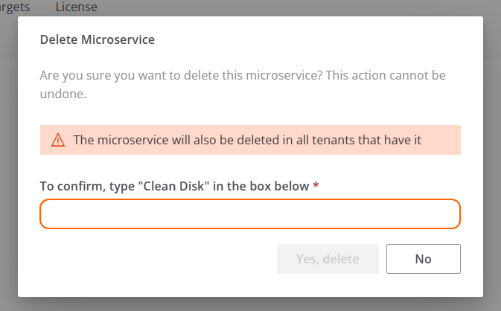 When deleting a microservice from the organization, it is also automatically deleted from the list of microservices of its tenants.
The deletion of a microservice is irreversible. Once deleted, it cannot be restored.
When deleting a microservice from the organization, it is also automatically deleted from the list of microservices of its tenants.
The deletion of a microservice is irreversible. Once deleted, it cannot be restored.