> ## Documentation Index
> Fetch the complete documentation index at: https://docs.flexxible.com/llms.txt
> Use this file to discover all available pages before exploring further.
# API
This document explains the steps required to create an API key to manage the integration of the Flexxible platform with third-party tools.
To make queries to the Flexxible API, see the [API reference](../../api-reference) section.
## Create an API key
1. Go to **Organization**.
2. In the menu, select the **API keys** tab.
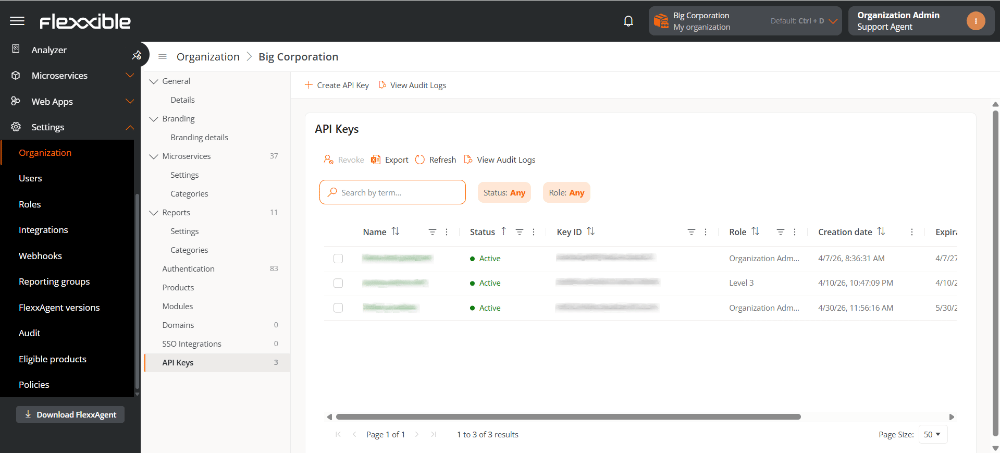 3. Click **Create API key**.
4. Fill in the form:
3. Click **Create API key**.
4. Fill in the form:
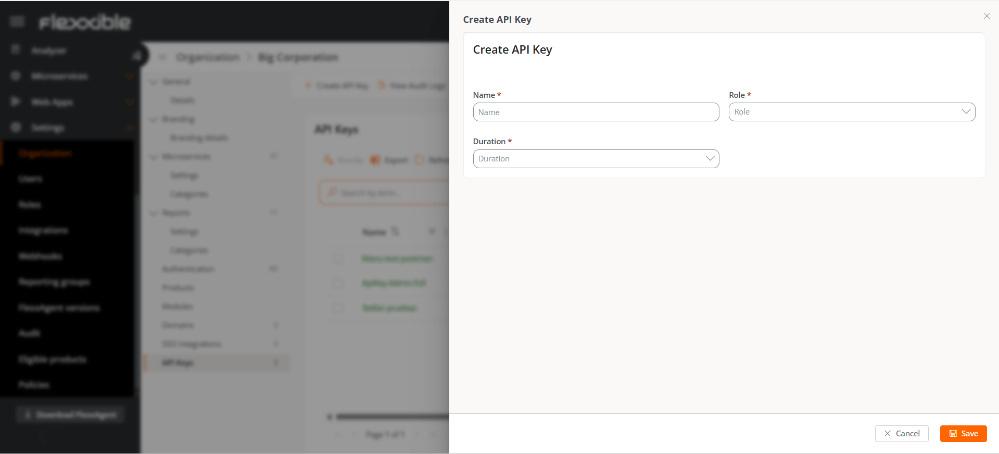 * **Name.** API key identifier.
* **Role.** Role assigned to the user on the platform.
* **Duration.** Validity period of the key.
5. Click **Save**.
Once created, the API key will appear in the table.
## Table information
The fields contain the following information:
* **Name.** Name assigned to the API key.
* **Status.** Can be Active, Expired, or Revoked.
* **Key ID.** ID corresponding to the API key.
* **Role.** Role of the user who will access the API.
* **Creation date.** Date and time the key was created.
* **Expiration date.** Date and time the key expires.
* **Revocation date.** If it has been revoked, date and time of revocation.
* **Name.** API key identifier.
* **Role.** Role assigned to the user on the platform.
* **Duration.** Validity period of the key.
5. Click **Save**.
Once created, the API key will appear in the table.
## Table information
The fields contain the following information:
* **Name.** Name assigned to the API key.
* **Status.** Can be Active, Expired, or Revoked.
* **Key ID.** ID corresponding to the API key.
* **Role.** Role of the user who will access the API.
* **Creation date.** Date and time the key was created.
* **Expiration date.** Date and time the key expires.
* **Revocation date.** If it has been revoked, date and time of revocation.