> ## Documentation Index
> Fetch the complete documentation index at: https://docs.flexxible.com/llms.txt
> Use this file to discover all available pages before exploring further.
# Virtual desktops
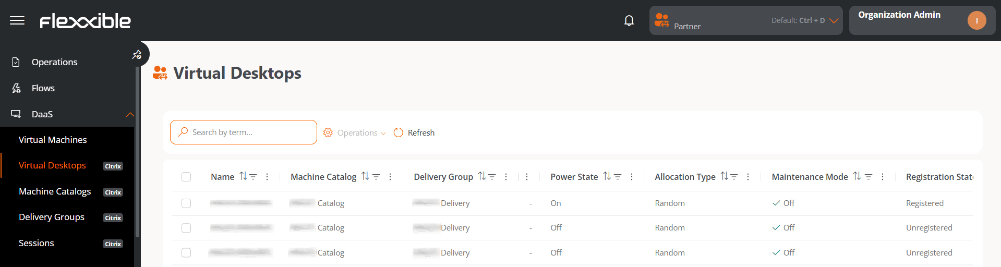
The **Virtual desktops** view focuses exclusively on the machines that are associated with a session broker and are available for provisioning user sessions.
It includes both VDI (Virtual Desktop Infrastructure) and SDI (Shared Desktop Infrastructure) or published applications.
 ## Table information
* **Name.** Name of the machine or template.
* **Machine catalog.** Name of the catalog it belongs to.
* **Delivery group.** Delivery group the machine is part of.
* **User.** User name.
* **Power state.** *In use*, *Off*, *Available*, or *Disconnected*.
* **Maintenance mode.** *Off* or *On*.
* **Allocation type.** *Static* or *Random*.
* **Registration state.** *Registered* or *Unregistered*.
## Available operations
This view lets you run actions on one or more selected virtual desktops.
| Operation | Action | Description |
| ---------------- | --------------------------------- | ------------------------------------------------------------------------------------------------------------ |
| Power actions | Start | Starts the virtual desktop if it is stopped. |
| | Shut down | Shuts down the virtual desktop. |
| | Restart | Restarts the virtual desktop. |
| | Suspend | Suspends the current state of the virtual desktop, keeping the session for later resumption. |
| | Resume | Restores a previously suspended virtual desktop, returning it to the state it was in. |
| | Force shut down (not recommended) | Shuts down the virtual desktop immediately, without waiting for a proper operating system shutdown. |
| | Force restart (not recommended) | Restarts the virtual desktop immediately, without performing an operating system shutdown. |
| Maintenance mode | On | Places the desktop in maintenance mode, preventing new user connections. Existing sessions are not affected. |
| | Off | Allows users to connect to the virtual desktop again. |
### Steps to run an operation
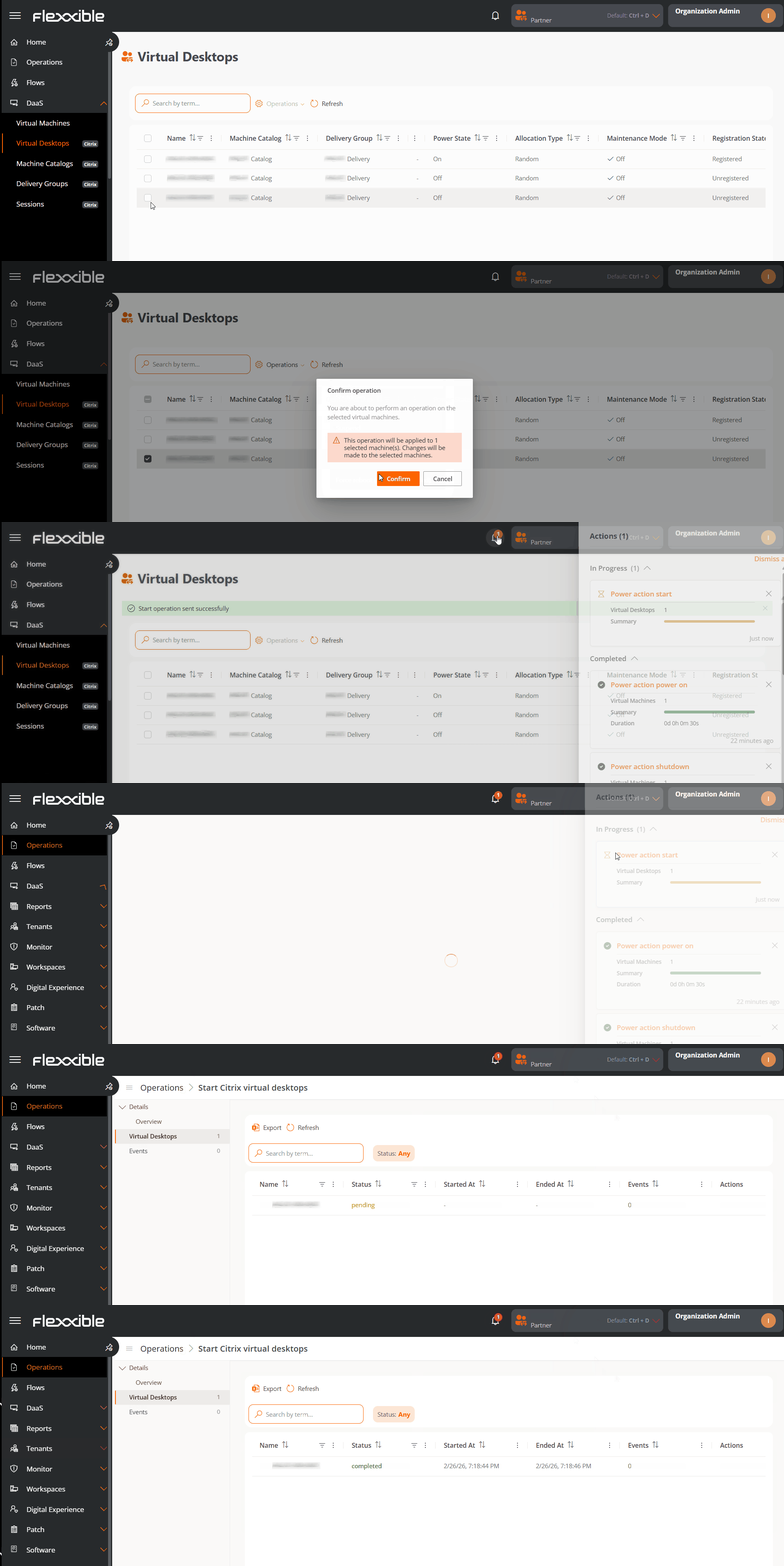
1. Go to **DaaS** → **Virtual desktops**.
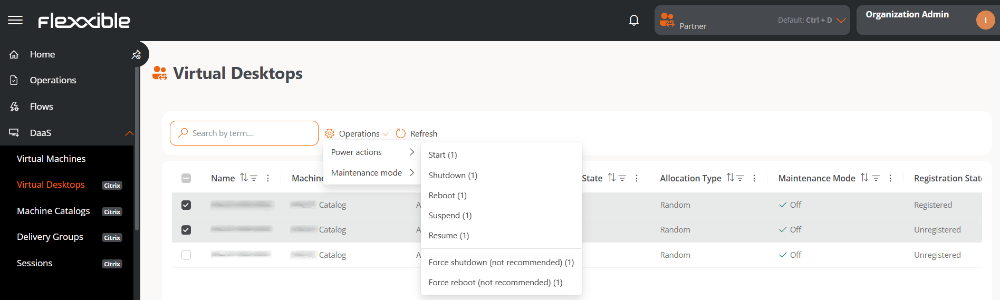
2. In the table, select one or more virtual desktops to run the operation on.
3. Click the **Operations** button.
4. Select the corresponding action.
The number in parentheses next to each action indicates the number of virtual desktops it can be applied to.
## Table information
* **Name.** Name of the machine or template.
* **Machine catalog.** Name of the catalog it belongs to.
* **Delivery group.** Delivery group the machine is part of.
* **User.** User name.
* **Power state.** *In use*, *Off*, *Available*, or *Disconnected*.
* **Maintenance mode.** *Off* or *On*.
* **Allocation type.** *Static* or *Random*.
* **Registration state.** *Registered* or *Unregistered*.
## Available operations
This view lets you run actions on one or more selected virtual desktops.
| Operation | Action | Description |
| ---------------- | --------------------------------- | ------------------------------------------------------------------------------------------------------------ |
| Power actions | Start | Starts the virtual desktop if it is stopped. |
| | Shut down | Shuts down the virtual desktop. |
| | Restart | Restarts the virtual desktop. |
| | Suspend | Suspends the current state of the virtual desktop, keeping the session for later resumption. |
| | Resume | Restores a previously suspended virtual desktop, returning it to the state it was in. |
| | Force shut down (not recommended) | Shuts down the virtual desktop immediately, without waiting for a proper operating system shutdown. |
| | Force restart (not recommended) | Restarts the virtual desktop immediately, without performing an operating system shutdown. |
| Maintenance mode | On | Places the desktop in maintenance mode, preventing new user connections. Existing sessions are not affected. |
| | Off | Allows users to connect to the virtual desktop again. |
### Steps to run an operation
1. Go to **DaaS** → **Virtual desktops**.
2. In the table, select one or more virtual desktops to run the operation on.
3. Click the **Operations** button.
4. Select the corresponding action.
The number in parentheses next to each action indicates the number of virtual desktops it can be applied to.
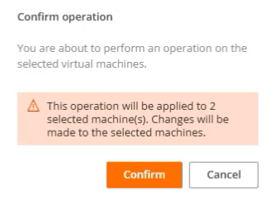
 5. Confirm the operation in the pop-up window.
 ### Tracking operations
Once the action is confirmed, you can check its status by clicking the notifications icon (bell) located next to the organization name.
Each action generates a separate entry per virtual desktop in the Operations section, where you can review the status and result of each execution.
### Tracking operations
Once the action is confirmed, you can check its status by clicking the notifications icon (bell) located next to the organization name.
Each action generates a separate entry per virtual desktop in the Operations section, where you can review the status and result of each execution.