> ## Documentation Index
> Fetch the complete documentation index at: https://docs.flexxible.com/llms.txt
> Use this file to discover all available pages before exploring further.
# Sessions
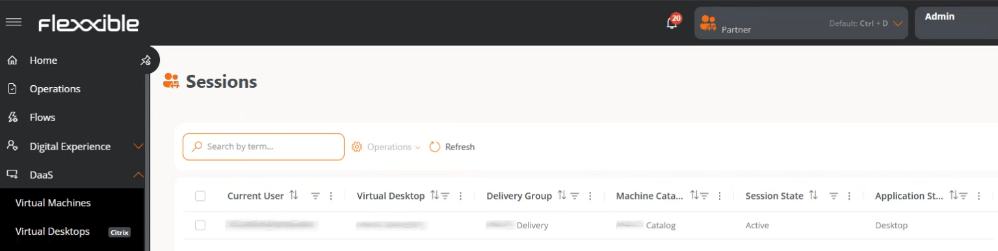
The **Sessions** view lets you monitor the status of active and disconnected user sessions, as well as obtain operational information about their activity.
It shows the following data:
* Which users are connected.
* Which virtual desktop they are using.
* Which catalog and delivery group they belong to.
 ## Table information
* **Current user.** Name of the connected user.
* **Virtual desktop.** Name of the assigned virtual resource.
* **Delivery group.** Associated group.
* **Machine catalog.** Name of the associated catalog.
* **Session status.** *Active* or *Disconnected*.
* **Application type.** Type of resource used by the user.
## Available operations
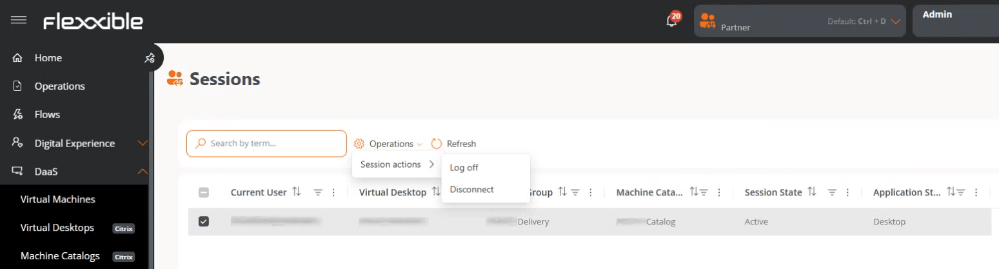
This view lets you run actions on one or more selected sessions.
| Operation | Action | Description |
| --------------- | ---------- | --------------------------------------------------------------------------------------------------------------------------------------- |
| Session actions | Log off | Completely ends the user's session on the machine, closing applications and releasing resources. |
| | Disconnect | Disconnects the active session (for example, an ICA connection), keeping the session in the background so the user can reconnect later. |
### Steps to run an operation
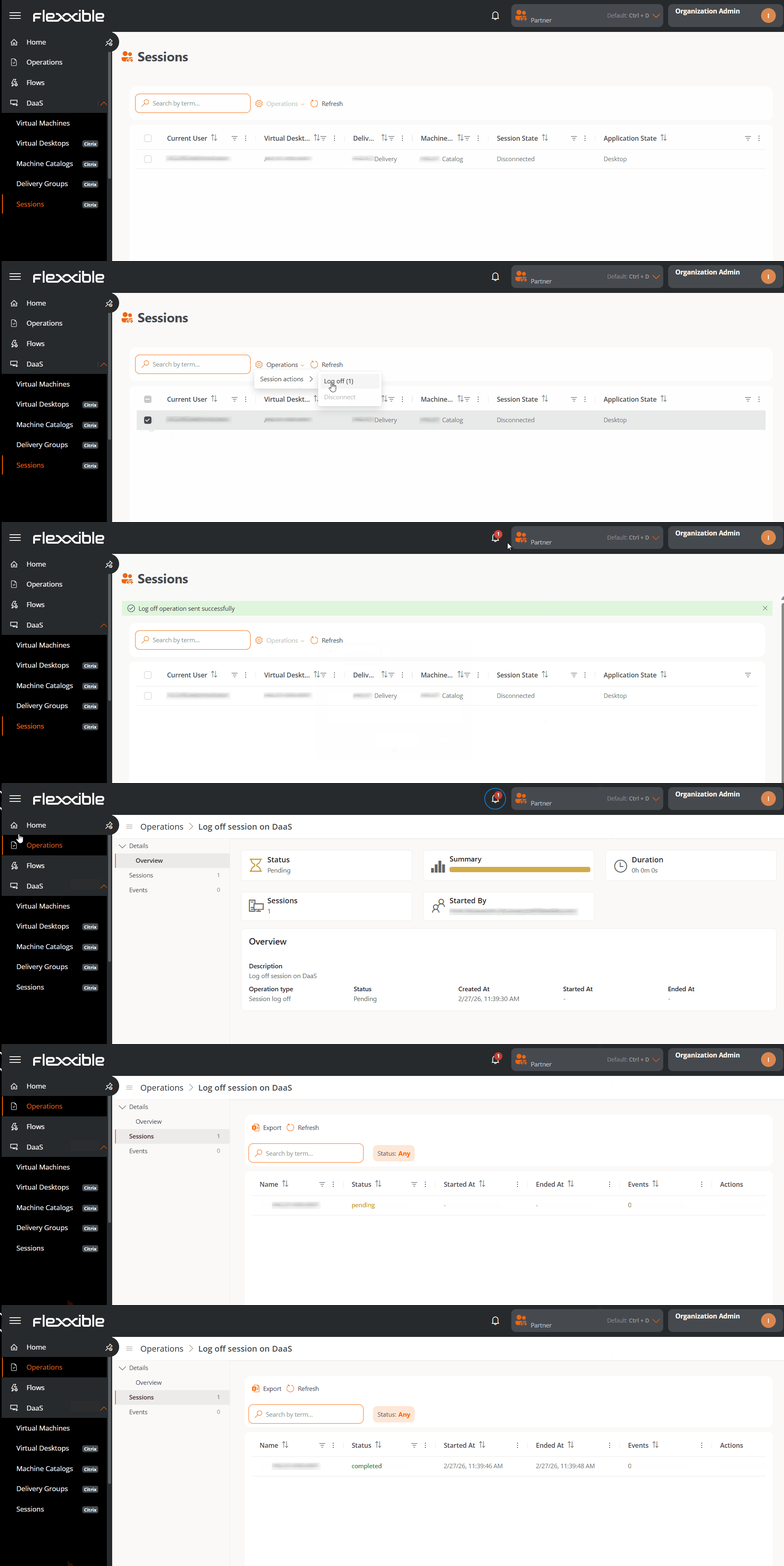
1. Go to **DaaS** → **Sessions**.
2. In the table, select one or more sessions to run the action on.
3. Click the **Operations** button.
4. Select the corresponding action.
The number in parentheses next to each action indicates the number of sessions it can be applied to.
## Table information
* **Current user.** Name of the connected user.
* **Virtual desktop.** Name of the assigned virtual resource.
* **Delivery group.** Associated group.
* **Machine catalog.** Name of the associated catalog.
* **Session status.** *Active* or *Disconnected*.
* **Application type.** Type of resource used by the user.
## Available operations
This view lets you run actions on one or more selected sessions.
| Operation | Action | Description |
| --------------- | ---------- | --------------------------------------------------------------------------------------------------------------------------------------- |
| Session actions | Log off | Completely ends the user's session on the machine, closing applications and releasing resources. |
| | Disconnect | Disconnects the active session (for example, an ICA connection), keeping the session in the background so the user can reconnect later. |
### Steps to run an operation
1. Go to **DaaS** → **Sessions**.
2. In the table, select one or more sessions to run the action on.
3. Click the **Operations** button.
4. Select the corresponding action.
The number in parentheses next to each action indicates the number of sessions it can be applied to.
 5. Confirm the operation in the pop-up window.
### Tracking operations
Once the action is confirmed, you can check its status by clicking the notifications icon (bell) located next to the organization name.
Each action generates a separate entry per session in the **Operations** section.
5. Confirm the operation in the pop-up window.
### Tracking operations
Once the action is confirmed, you can check its status by clicking the notifications icon (bell) located next to the organization name.
Each action generates a separate entry per session in the **Operations** section.