> ## Documentation Index
> Fetch the complete documentation index at: https://docs.flexxible.com/llms.txt
> Use this file to discover all available pages before exploring further.
# Billing details
The detail of the information in **Billing** depends on the organization type.
## View from a partner-type organization
The billing view for a partner-type organization is divided into the following sections:
* Overview
* Tenant consumption details
* Client identification
### Overview
This tab provides information about the FXXOne subscription and the consumption associated with both the organization and its tenants.
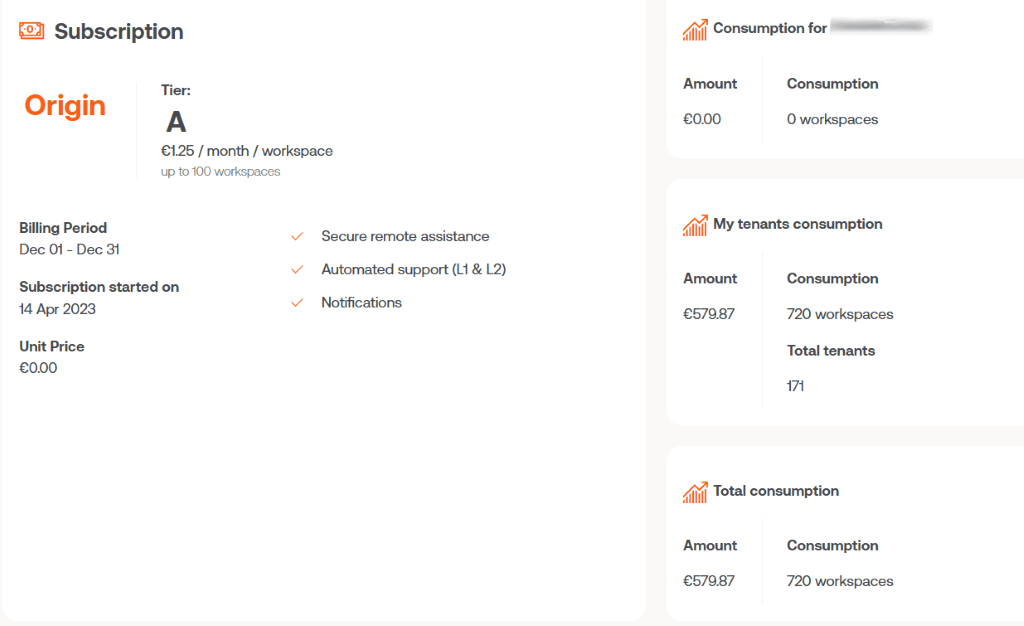 It is made up of four panels:
* Subscription
* Consumption for the organization
* Consumption of my tenants
* Total consumption
#### Subscription
Shows general information:
* Contracted plan
* Billing period
* Subscription start date
* Unit price per device
The **Tier** value determines the price applied per device and is calculated taking into account the aggregated consumption of the partner-type organization and all its tenants.
Tenants inherit the tier assigned to the organization that manages them, regardless of the plan they have configured individually.
#### Consumption for the organization
Shows the number of subscribed devices belonging to the partner-type organization and the billable amount.
A device will continue to count for billing purposes while it belongs to a reporting group, even if FlexxAgent has been uninstalled.
To remove it immediately, see the **Removing a device** section.
#### Consumption of my tenants
Shows the total number of subscribed devices belonging to the tenants managed by the organization, as well as the billable amount.
#### Total consumption
Shows the aggregated consumption of the organization and all its tenants, along with the total billable amount.
### Tenant consumption details
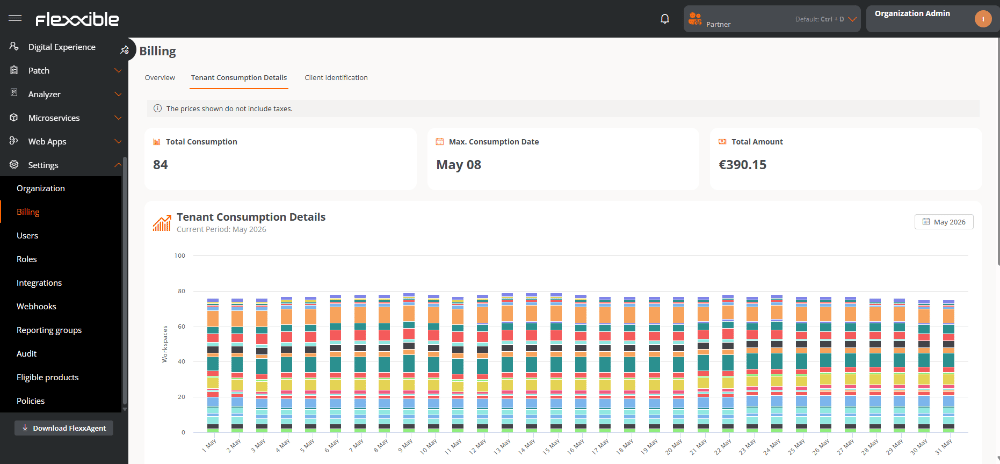
This tab shows an analysis panel of device consumption for each tenant during the current billing period.
The lower part includes a table with detailed information about each subscription:
* **Tenant.** Tenant name.
* **Plan.** Contracted subscription plan.
* **Parent.** Partner-type organization it belongs to.
* **Consumption.** Indicates the level of service consumption. It is based on the number of devices that have reported to Workspaces.
* **Consumption date.** Date on which the highest number of devices reporting was recorded.
* **Unit price.** Price applied per device.
* **Billing period.** Current billing period.
* **Total.** Total billable amount.
It is made up of four panels:
* Subscription
* Consumption for the organization
* Consumption of my tenants
* Total consumption
#### Subscription
Shows general information:
* Contracted plan
* Billing period
* Subscription start date
* Unit price per device
The **Tier** value determines the price applied per device and is calculated taking into account the aggregated consumption of the partner-type organization and all its tenants.
Tenants inherit the tier assigned to the organization that manages them, regardless of the plan they have configured individually.
#### Consumption for the organization
Shows the number of subscribed devices belonging to the partner-type organization and the billable amount.
A device will continue to count for billing purposes while it belongs to a reporting group, even if FlexxAgent has been uninstalled.
To remove it immediately, see the **Removing a device** section.
#### Consumption of my tenants
Shows the total number of subscribed devices belonging to the tenants managed by the organization, as well as the billable amount.
#### Total consumption
Shows the aggregated consumption of the organization and all its tenants, along with the total billable amount.
### Tenant consumption details
This tab shows an analysis panel of device consumption for each tenant during the current billing period.
The lower part includes a table with detailed information about each subscription:
* **Tenant.** Tenant name.
* **Plan.** Contracted subscription plan.
* **Parent.** Partner-type organization it belongs to.
* **Consumption.** Indicates the level of service consumption. It is based on the number of devices that have reported to Workspaces.
* **Consumption date.** Date on which the highest number of devices reporting was recorded.
* **Unit price.** Price applied per device.
* **Billing period.** Current billing period.
* **Total.** Total billable amount.
 ### Client identification
This tab shows the list of tenants managed by the organization and lets you assign a custom internal code to each one, which is useful for identification, classification, or integration with the organization's own systems and processes.
### Client identification
This tab shows the list of tenants managed by the organization and lets you assign a custom internal code to each one, which is useful for identification, classification, or integration with the organization's own systems and processes.
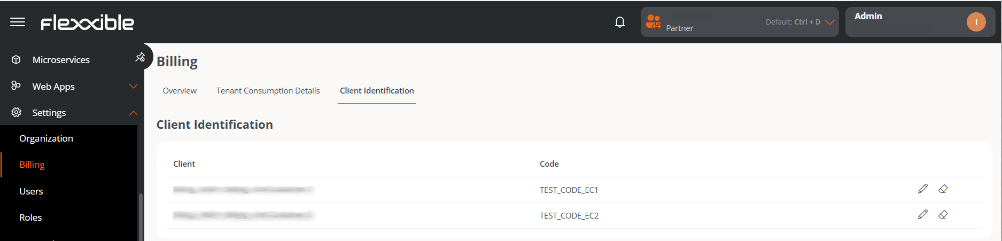 The table contains the following information:
* **Client.** Tenant name.
* **Code.** Unique identifier assigned by the organization. This value is editable.
## View from a client-type organization
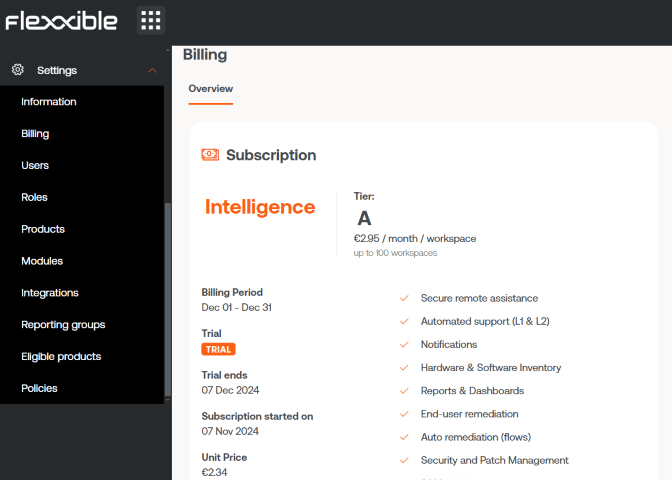
Users with the Administrator role in client-type organizations only have access to the **Overview** tab.
### Overview
Shows general information about the contracted subscription:
* Contracted plan.
* Billing period.
* Subscription start date.
* Unit price per device.
The table contains the following information:
* **Client.** Tenant name.
* **Code.** Unique identifier assigned by the organization. This value is editable.
## View from a client-type organization
Users with the Administrator role in client-type organizations only have access to the **Overview** tab.
### Overview
Shows general information about the contracted subscription:
* Contracted plan.
* Billing period.
* Subscription start date.
* Unit price per device.
 ## FlexxAgent consumption
FlexxAgent consumption is calculated using the maximum number of devices that have reported in Workspaces during a single day within the billing period.
For a device to stop being counted for billing purposes, two conditions must be met:
* FlexxAgent must be uninstalled.
* The device must not belong to any reporting group.
If FlexxAgent remains installed, the device will be counted again as soon as it reports to Workspaces.
If you want a device to stop appearing in Workspaces immediately, you must remove it manually.
Otherwise, it will be removed automatically 21 days after its last report.
### Removing a device
To manually remove a device, follow these steps:
1. Go to **Workspaces** → **Workspaces**.
2. In the table, select the devices you want to remove.
3. Click **Delete selected workspaces**.
4. Confirm the operation in the pop-up window.
## FlexxAgent consumption
FlexxAgent consumption is calculated using the maximum number of devices that have reported in Workspaces during a single day within the billing period.
For a device to stop being counted for billing purposes, two conditions must be met:
* FlexxAgent must be uninstalled.
* The device must not belong to any reporting group.
If FlexxAgent remains installed, the device will be counted again as soon as it reports to Workspaces.
If you want a device to stop appearing in Workspaces immediately, you must remove it manually.
Otherwise, it will be removed automatically 21 days after its last report.
### Removing a device
To manually remove a device, follow these steps:
1. Go to **Workspaces** → **Workspaces**.
2. In the table, select the devices you want to remove.
3. Click **Delete selected workspaces**.
4. Confirm the operation in the pop-up window.