> ## Documentation Index
> Fetch the complete documentation index at: https://docs.flexxible.com/llms.txt
> Use this file to discover all available pages before exploring further.
# Web Apps
Web Apps is a feature designed to monitor the behavior of web applications from the end user's perspective. Its main goal is to provide accurate, real-time information to identify potential issues related to performance, access errors, or service degradation.
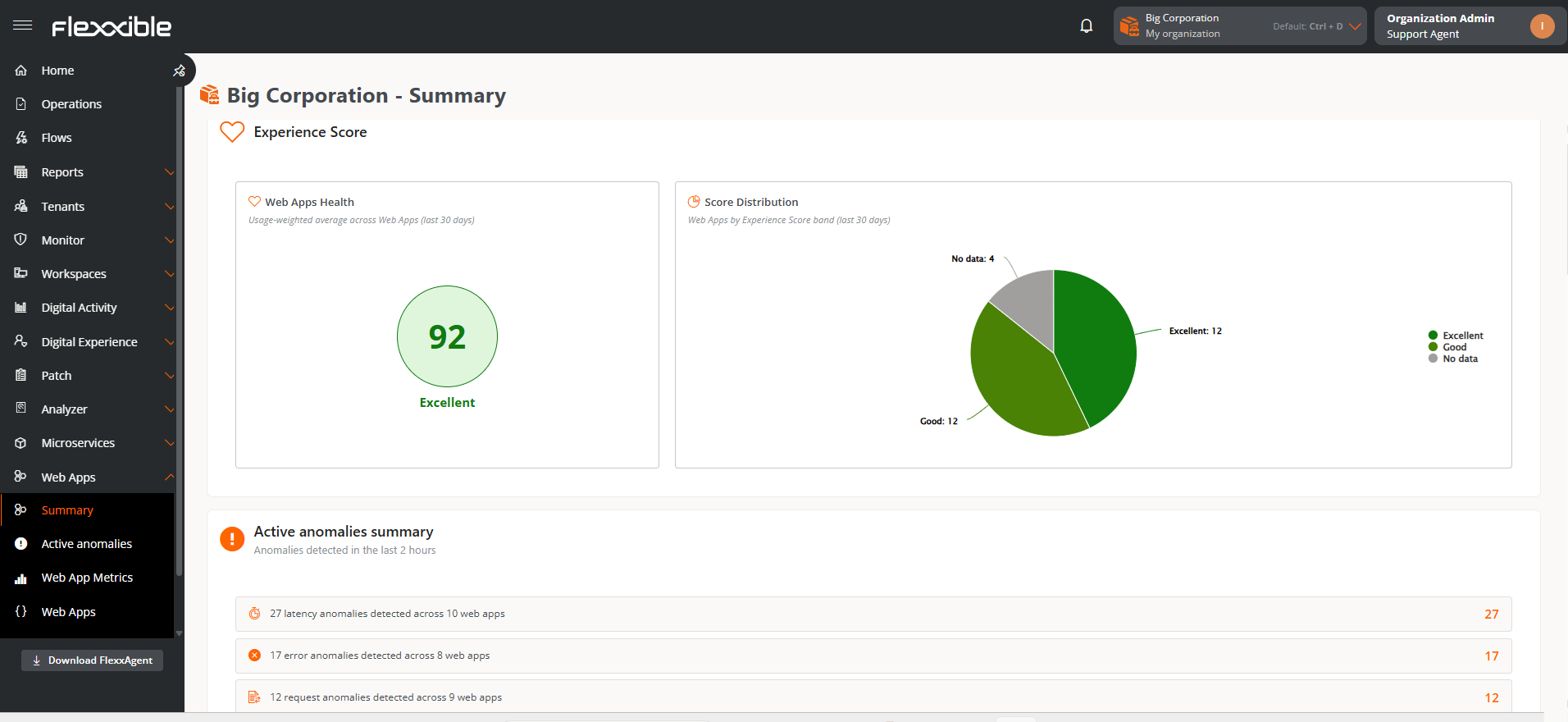 Unlike tools focused exclusively on server monitoring, Web Apps provides a comprehensive view of the user experience, letting you analyze how applications behave in real-world use.
Its main capabilities include:
* Data segmentation by networks or reporting groups, allowing for more granular and detailed analysis.
* Detection of failure patterns and anomalous behavior.
* Assessment of the performance perceived by users.
* Identification of latency issues and access errors.
* Gathering information to optimize service quality.
## Requirements
To use Web Apps correctly, you must meet the following minimum requirements:
* FlexxAgent version 25.7.1 or higher, installed and updated.
* Flexxible Web Apps extension installed and enabled in the browser.
* Activation of the feature from the Products and Reporting groups settings.
## Flexxible Web Apps extension
The Flexxible Web Apps extension is an essential component for Web Apps to work.
* It requires FlexxAgent to operate.
* It cannot be used independently.
## Supported browsers
The Flexxible Web Apps extension is available for the following browsers:
* Google Chrome version 102 or higher
* Microsoft Edge version 102 or higher
## Deployment
The extension can be installed manually. However, the deployment method will depend on the corporate environment and the organization's software management policies, such as GPO, Microsoft Intune, or other automated deployment tools.
After installing the extension, FlexxAgent automatically performs the configuration required for it to work. Extension updates are managed by the browser itself and do not require manual intervention.
### Download links
**Chrome Web Store**
```
https://chromewebstore.google.com/detail/flexxible/pdiegjhfhkabmeoocgnppbeldhflghog
```
**Microsoft Edge Add-ons**
```
https://microsoftedge.microsoft.com/addons/detail/flexxible/emfbhanhgnofpldcaafnhifocepbnoji
```
## Enabling Web Apps
For devices to start reporting information, you must enable the feature both at the environment level and in the corresponding reporting groups.
### Enable from Products
Web Apps can be enabled globally for each environment in the organization.
1. Go to **Settings** → **Organization**.
2. In the menu, select the **Products** tab.
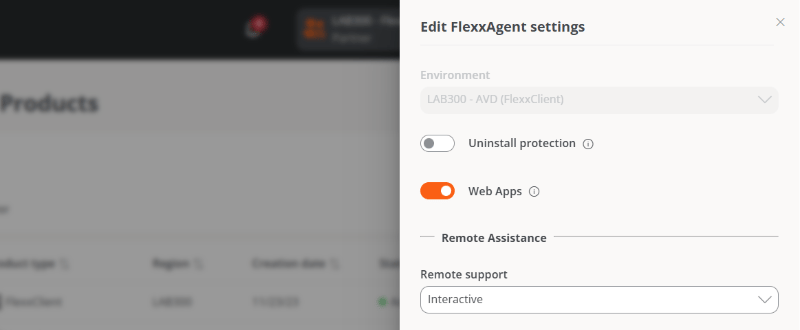
3. In the table, choose the environment on which you want to run the feature and, in the **Action** field, click **Agent settings**.
4. In the form, enable or disable the Web Apps button.
Unlike tools focused exclusively on server monitoring, Web Apps provides a comprehensive view of the user experience, letting you analyze how applications behave in real-world use.
Its main capabilities include:
* Data segmentation by networks or reporting groups, allowing for more granular and detailed analysis.
* Detection of failure patterns and anomalous behavior.
* Assessment of the performance perceived by users.
* Identification of latency issues and access errors.
* Gathering information to optimize service quality.
## Requirements
To use Web Apps correctly, you must meet the following minimum requirements:
* FlexxAgent version 25.7.1 or higher, installed and updated.
* Flexxible Web Apps extension installed and enabled in the browser.
* Activation of the feature from the Products and Reporting groups settings.
## Flexxible Web Apps extension
The Flexxible Web Apps extension is an essential component for Web Apps to work.
* It requires FlexxAgent to operate.
* It cannot be used independently.
## Supported browsers
The Flexxible Web Apps extension is available for the following browsers:
* Google Chrome version 102 or higher
* Microsoft Edge version 102 or higher
## Deployment
The extension can be installed manually. However, the deployment method will depend on the corporate environment and the organization's software management policies, such as GPO, Microsoft Intune, or other automated deployment tools.
After installing the extension, FlexxAgent automatically performs the configuration required for it to work. Extension updates are managed by the browser itself and do not require manual intervention.
### Download links
**Chrome Web Store**
```
https://chromewebstore.google.com/detail/flexxible/pdiegjhfhkabmeoocgnppbeldhflghog
```
**Microsoft Edge Add-ons**
```
https://microsoftedge.microsoft.com/addons/detail/flexxible/emfbhanhgnofpldcaafnhifocepbnoji
```
## Enabling Web Apps
For devices to start reporting information, you must enable the feature both at the environment level and in the corresponding reporting groups.
### Enable from Products
Web Apps can be enabled globally for each environment in the organization.
1. Go to **Settings** → **Organization**.
2. In the menu, select the **Products** tab.
3. In the table, choose the environment on which you want to run the feature and, in the **Action** field, click **Agent settings**.
4. In the form, enable or disable the Web Apps button.
 ### Enable from Reporting groups
The feature can also be enabled on groups of devices or specific units within the same organization.
1. Go to **Settings** → **Reporting groups**.
2. In the table, choose the reporting group on which you want to run the feature, and in the **Action** field click **Agent settings**.
3. In the form, enable or disable the Web Apps button.
Web Apps data collection will start the next time the browser is restarted. Once the feature is enabled and configured, the first data may take up to 24 hours to appear in the platform.
### Enable from Reporting groups
The feature can also be enabled on groups of devices or specific units within the same organization.
1. Go to **Settings** → **Reporting groups**.
2. In the table, choose the reporting group on which you want to run the feature, and in the **Action** field click **Agent settings**.
3. In the form, enable or disable the Web Apps button.
Web Apps data collection will start the next time the browser is restarted. Once the feature is enabled and configured, the first data may take up to 24 hours to appear in the platform.