> ## Documentation Index
> Fetch the complete documentation index at: https://docs.flexxible.com/llms.txt
> Use this file to discover all available pages before exploring further.
# Workspace groups
**Workspace groups** streamline the device management process for organizations, letting them group devices based on shared characteristics or specific criteria to monitor statistics more thoroughly and perform effective actions.
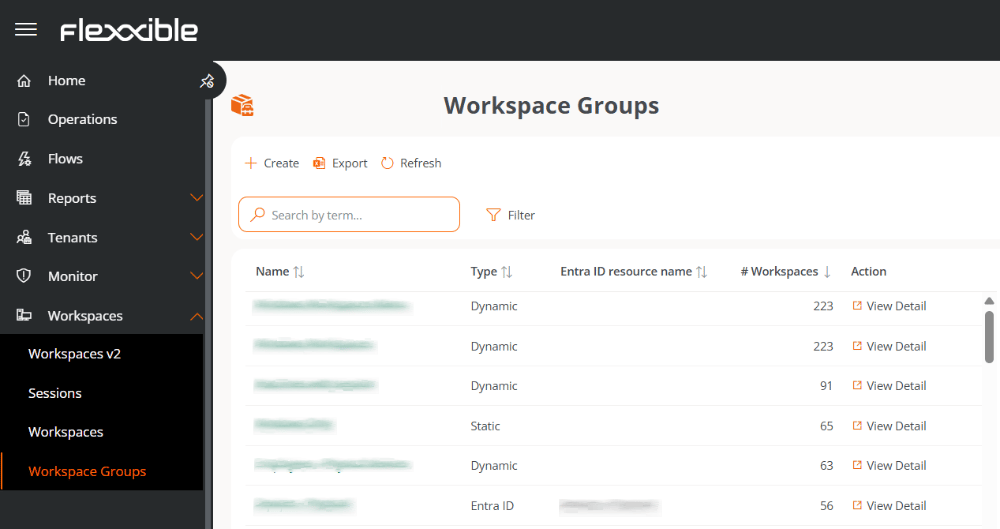 There are three types of groups:
* Static
* Dynamic
* Entra ID
## Static workspace group
A group created manually with unrestricted criteria.
## Dynamic workspace group
A group in which some condition is periodically evaluated; for example: "devices with more than 85% memory in use", so its members can change in real time. It is very useful when you want to apply targeted actions to them, such as microservices to solve a specific issue.
Dynamic workspace groups evaluate compliance with a defined condition every 60 minutes; because of this, they are not recommended as a mechanism for detecting user sessions.
## Entra ID workspace group
A group that has the ability to be populated from the members of an existing group or organizational unit in the Entra ID domain in use. Creating this type of group requires at least one active integration with the Entra ID domain, within **Settings** → **Organization** → **Integrations**.
## Group management
The list view of the Workspace groups section reports on the group names, their type, Entra ID characteristic, and the number of devices they contain. The **View details** button shows the following tabs:
* Workspace group details
* Workspaces
* History
* Location
* Installed applications
* Schedules
* Syncs
### Workspace group details
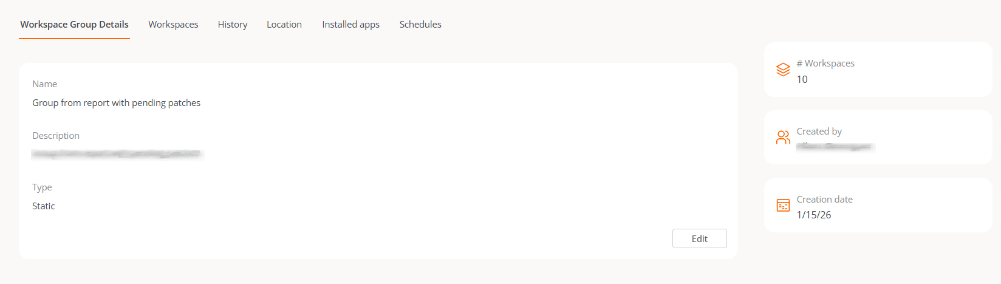
Shows the same data as the list view, plus the group creation date and the user who created it. The **Edit** button lets you change the device name, add a description, or even delete it.
There are three types of groups:
* Static
* Dynamic
* Entra ID
## Static workspace group
A group created manually with unrestricted criteria.
## Dynamic workspace group
A group in which some condition is periodically evaluated; for example: "devices with more than 85% memory in use", so its members can change in real time. It is very useful when you want to apply targeted actions to them, such as microservices to solve a specific issue.
Dynamic workspace groups evaluate compliance with a defined condition every 60 minutes; because of this, they are not recommended as a mechanism for detecting user sessions.
## Entra ID workspace group
A group that has the ability to be populated from the members of an existing group or organizational unit in the Entra ID domain in use. Creating this type of group requires at least one active integration with the Entra ID domain, within **Settings** → **Organization** → **Integrations**.
## Group management
The list view of the Workspace groups section reports on the group names, their type, Entra ID characteristic, and the number of devices they contain. The **View details** button shows the following tabs:
* Workspace group details
* Workspaces
* History
* Location
* Installed applications
* Schedules
* Syncs
### Workspace group details
Shows the same data as the list view, plus the group creation date and the user who created it. The **Edit** button lets you change the device name, add a description, or even delete it.
 ### Workspaces
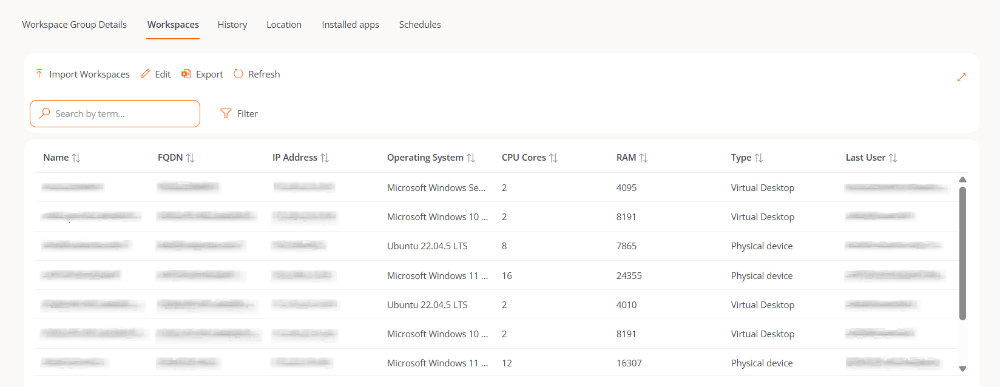
Shows a table with a list of the devices that make up the group. Reports the device's Fully Qualified Domain Name (FQDN), IP address, operating system, CPU cores, Random Access Memory (RAM), type (physical or virtual), and last user. The **Import Workspaces** and **Edit** options are only available for static workspace groups.
### Workspaces
Shows a table with a list of the devices that make up the group. Reports the device's Fully Qualified Domain Name (FQDN), IP address, operating system, CPU cores, Random Access Memory (RAM), type (physical or virtual), and last user. The **Import Workspaces** and **Edit** options are only available for static workspace groups.
 ### History
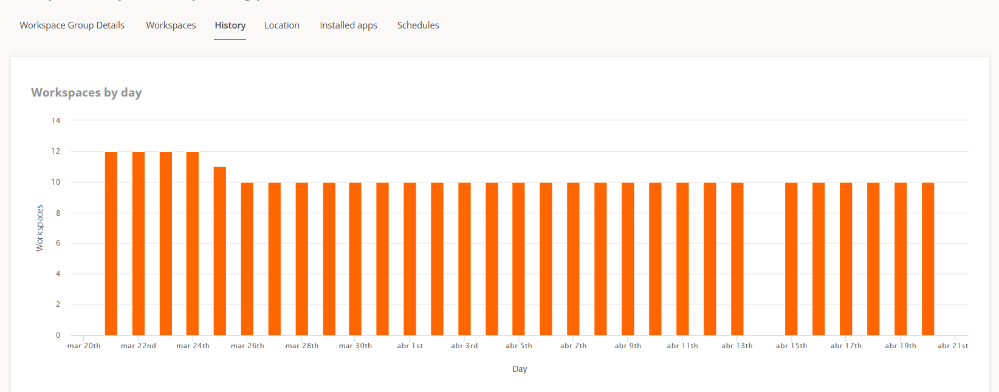
Shows a bar chart with the daily number of devices that have made up the group over the last month. You can zoom in on the chart for better reading by selecting the bars you want to enlarge with the mouse. Use **Reset zoom** to return the information to its original state.
### History
Shows a bar chart with the daily number of devices that have made up the group over the last month. You can zoom in on the chart for better reading by selecting the bars you want to enlarge with the mouse. Use **Reset zoom** to return the information to its original state.
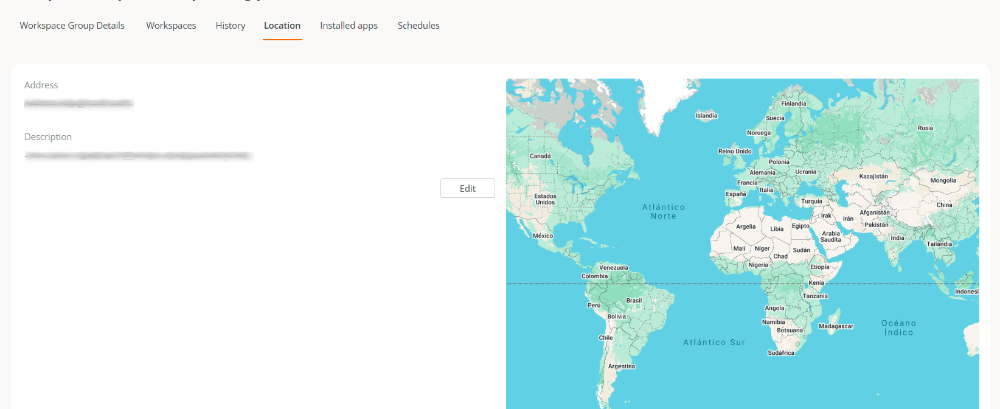
 ### Location
Lets you associate GPS coordinates with the workspace group to relate it to a point on the map. This value is only a reference; it is not updated if users change locations.
### Location
Lets you associate GPS coordinates with the workspace group to relate it to a point on the map. This value is only a reference; it is not updated if users change locations.
 ### Installed applications
This tab shows the list of all applications installed on the devices belonging to the selected workspace group.
### Installed applications
This tab shows the list of all applications installed on the devices belonging to the selected workspace group.
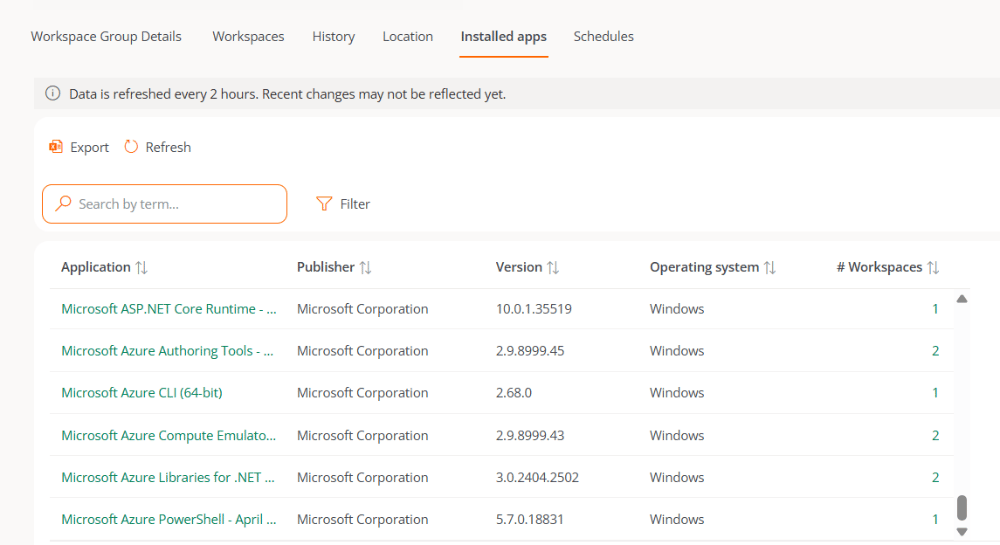 The table includes the following fields:
* **Application.** Name of the installed application. Clickable. Redirects to its details view.
* **Publisher.** Company that develops the application.
* **Version.** Installed version number.
* **Operating system.** Operating system of the devices where the application is installed.
* **Workspaces.** Number of devices in the group where the application is installed. Clickable. Redirects to the [Workspaces tab](../apps/software/installed-apps), within the application's details view.
In workspace groups with a large number of devices, the processing required to calculate and display this information may take longer to load.
Due to this data volume, the total number of devices on which each application is installed is not calculated in real time. This value is automatically updated every two hours, so recent changes may not be immediately reflected.
### Schedules
This functionality lets you configure recurring actions on the workspace group when the same action needs to be executed several times a week within a single schedule.
From this tab, you can schedule the following actions:
* Wake on LAN (WoL)
* Shut down
* Restart
To create a schedule:
1. Go to **Workspaces** → **Workspace groups**.
2. In the table, select a workspace group.
3. Go to the **Schedules** tab.
4. Click **New** and fill in the form with the following fields:
The table includes the following fields:
* **Application.** Name of the installed application. Clickable. Redirects to its details view.
* **Publisher.** Company that develops the application.
* **Version.** Installed version number.
* **Operating system.** Operating system of the devices where the application is installed.
* **Workspaces.** Number of devices in the group where the application is installed. Clickable. Redirects to the [Workspaces tab](../apps/software/installed-apps), within the application's details view.
In workspace groups with a large number of devices, the processing required to calculate and display this information may take longer to load.
Due to this data volume, the total number of devices on which each application is installed is not calculated in real time. This value is automatically updated every two hours, so recent changes may not be immediately reflected.
### Schedules
This functionality lets you configure recurring actions on the workspace group when the same action needs to be executed several times a week within a single schedule.
From this tab, you can schedule the following actions:
* Wake on LAN (WoL)
* Shut down
* Restart
To create a schedule:
1. Go to **Workspaces** → **Workspace groups**.
2. In the table, select a workspace group.
3. Go to the **Schedules** tab.
4. Click **New** and fill in the form with the following fields:
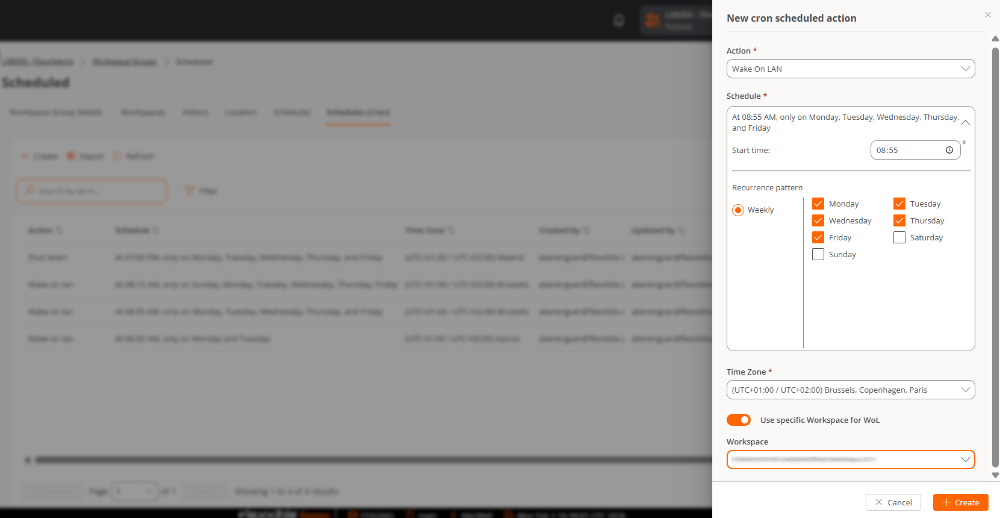 * **Action.** *Wake on LAN* or *Shutdown*.
When you choose *Wake on LAN*, the **Use specific workspace for WoL** option is enabled, allowing power-on through a specific device.
* **Schedule.**
* **Start time.** Time at which the action will run.
* **Recurrence pattern**
* **Weekly.** Selection of one or more days of the week on which the action will run.
* **Time zone.** Time zone that will be used as a reference for running the action.
5. Click **Save**.
The schedules created are shown in a table with the configured information, the user who created the schedule, and the last update information.
From **View details** you can edit or delete the schedule.
### Syncs
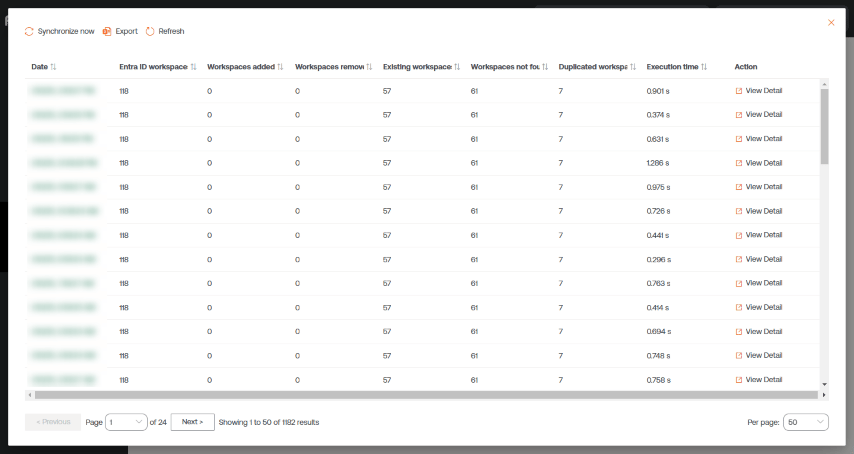
This tab is only visible when the group is Entra ID type. It shows a table with details of the syncs performed, with information about:
* Sync date and time.
* **Entra ID workspaces.** Total number of items in the Entra ID group or organizational unit.
* **Workspaces added.** Number of devices added to the group.
* **Workspaces removed.** Number of devices removed from the group.
* **Existing workspaces.** Number of devices that were already in the group.
* **Workspaces not found.** Number of workspaces not found in the group; that is, devices that, although they are part of the Entra ID group or organizational unit, cannot be added to the group because they do not have FlexxAgent installed.
* **Duplicate workspaces.** Number of duplicate workspaces in the group, if any.
* **Execution time.** Time the sync took.
* **Action.** Lets you view a table with sync information for each device in the group.
* **Action.** *Wake on LAN* or *Shutdown*.
When you choose *Wake on LAN*, the **Use specific workspace for WoL** option is enabled, allowing power-on through a specific device.
* **Schedule.**
* **Start time.** Time at which the action will run.
* **Recurrence pattern**
* **Weekly.** Selection of one or more days of the week on which the action will run.
* **Time zone.** Time zone that will be used as a reference for running the action.
5. Click **Save**.
The schedules created are shown in a table with the configured information, the user who created the schedule, and the last update information.
From **View details** you can edit or delete the schedule.
### Syncs
This tab is only visible when the group is Entra ID type. It shows a table with details of the syncs performed, with information about:
* Sync date and time.
* **Entra ID workspaces.** Total number of items in the Entra ID group or organizational unit.
* **Workspaces added.** Number of devices added to the group.
* **Workspaces removed.** Number of devices removed from the group.
* **Existing workspaces.** Number of devices that were already in the group.
* **Workspaces not found.** Number of workspaces not found in the group; that is, devices that, although they are part of the Entra ID group or organizational unit, cannot be added to the group because they do not have FlexxAgent installed.
* **Duplicate workspaces.** Number of duplicate workspaces in the group, if any.
* **Execution time.** Time the sync took.
* **Action.** Lets you view a table with sync information for each device in the group.
 ## Group creation
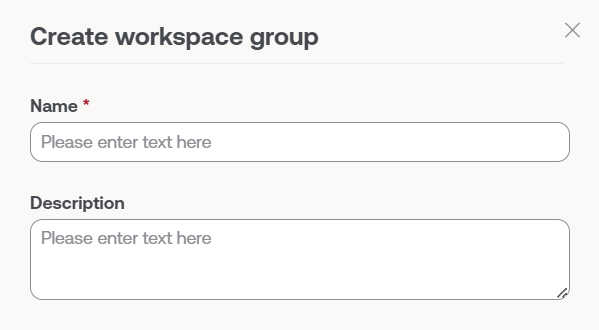
At the top of the list view in the **Workspace groups** section, click **New**. A form will open in which you will be asked to add a name and a description for the new group.
## Group creation
At the top of the list view in the **Workspace groups** section, click **New**. A form will open in which you will be asked to add a name and a description for the new group.
 There are two ways to add devices to a static workspace group:
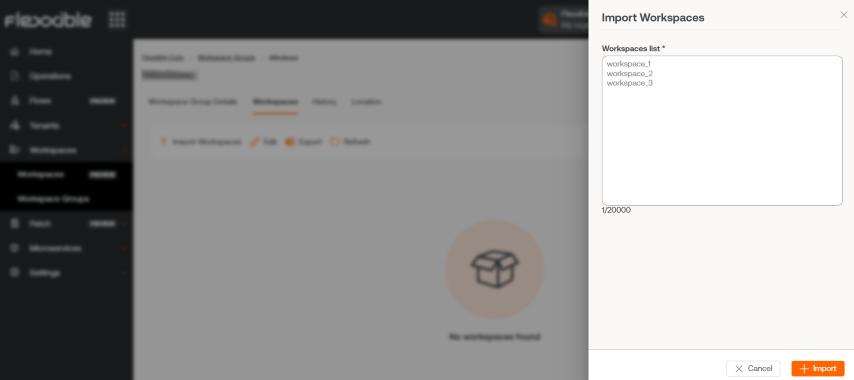
1. In the groups table, click **Details view** for the desired group → **Workspaces** → **Import devices**. A form opens that lets you import up to 20 thousand devices.
There are two ways to add devices to a static workspace group:
1. In the groups table, click **Details view** for the desired group → **Workspaces** → **Import devices**. A form opens that lets you import up to 20 thousand devices.
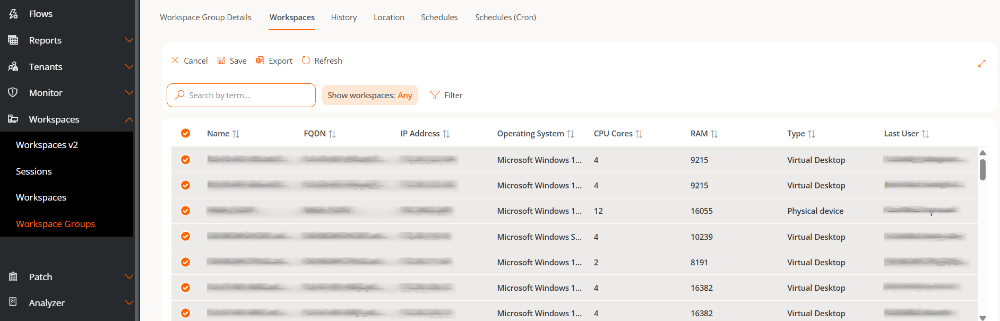
 2. In the groups table, click **Details view** for the desired group → **Workspaces** → **Edit**. Next, select the devices you want to add. Those marked with an orange dot are added to the group and those not marked are removed. In both cases, to keep the changes you must click **Save**.
 Organizations can import into a static workspace group those devices that are part of their sub-organizations.
### Create an Entra ID workspace group
In the side menu, go to **Workspace groups**. Click **New**. A form will open in which you must add a name, a description for the group, and enable the **Entra ID** toggle. Next, select the type of group to be created: **Entra ID Group** or **Entra ID Administration Unit**.
Entra ID groups require an API connection, which can be configured from **Settings** → **Organization** → **API key**. Only from there will you be able to consult the created **Entra ID Group** and **Entra ID Administration Unit**.
### Delete a workspace group
In the list view of the Workspace groups section, click **Details view** for the desired group. In the **Group details** → **Edit** tab, a form will open with the **Delete** option.
Organizations can import into a static workspace group those devices that are part of their sub-organizations.
### Create an Entra ID workspace group
In the side menu, go to **Workspace groups**. Click **New**. A form will open in which you must add a name, a description for the group, and enable the **Entra ID** toggle. Next, select the type of group to be created: **Entra ID Group** or **Entra ID Administration Unit**.
Entra ID groups require an API connection, which can be configured from **Settings** → **Organization** → **API key**. Only from there will you be able to consult the created **Entra ID Group** and **Entra ID Administration Unit**.
### Delete a workspace group
In the list view of the Workspace groups section, click **Details view** for the desired group. In the **Group details** → **Edit** tab, a form will open with the **Delete** option.