> ## Documentation Index
> Fetch the complete documentation index at: https://docs.flexxible.com/llms.txt
> Use this file to discover all available pages before exploring further.
# Users
User management can be performed from **Settings** → **Users**. From there you can view, modify, create, or delete users, as well as assign them a role.
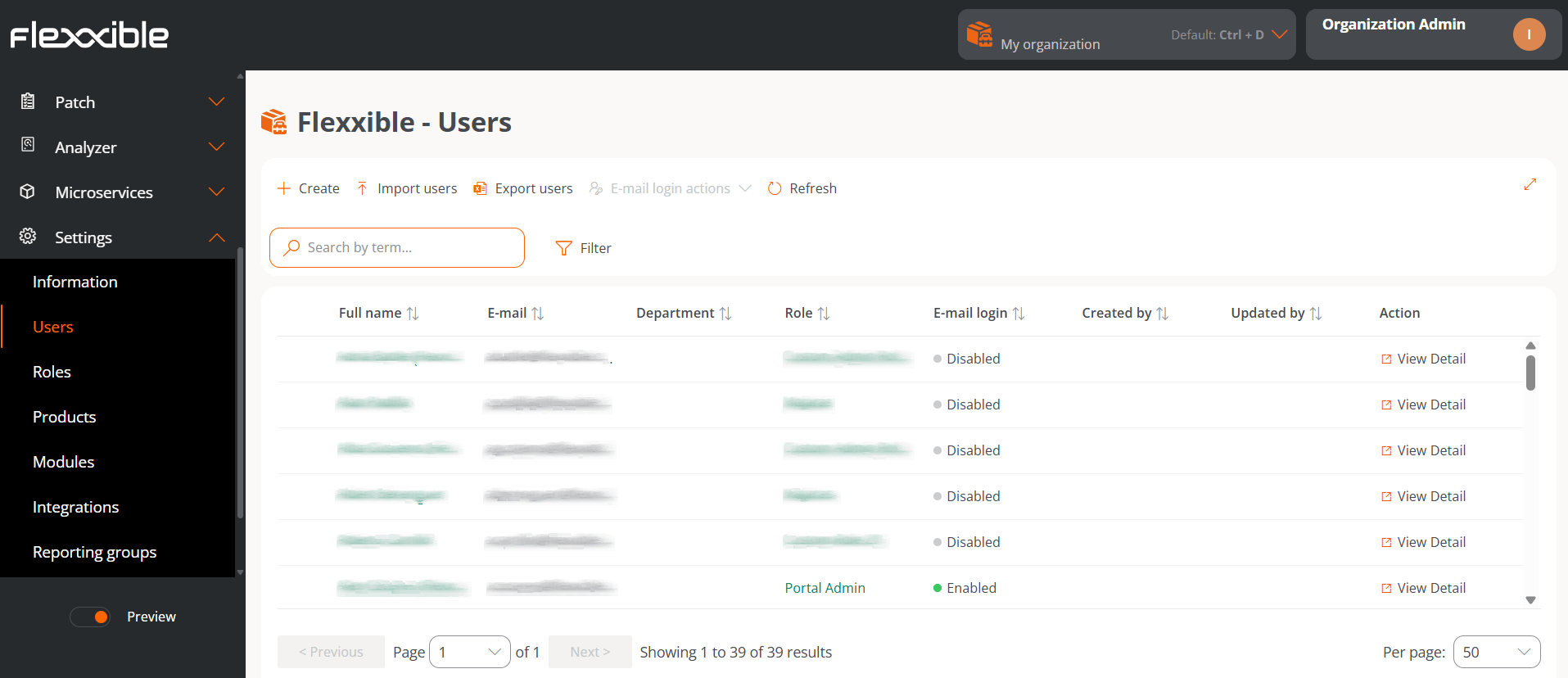 The table shows a list of all users in an organization. Each row provides the following information:
* **Full name.** User's first and last name.
* **Email.** User's email.
* **Department.** Department the user belongs to within their organization.
* **Role.** [Role type](./roles) assigned to the user.
* **Email sign-in.** Indicates whether the user has sign-in to the Flexxible consoles **Enabled** or **Disabled** using an email address and password.
* **Created by.** Name of the person who created the user.
* **Updated by.** Name and email address of the last user who updated the information.
* **View details.** Opens a form to edit the user's data and even delete it, depending on the role assigned to the user.
## Create users
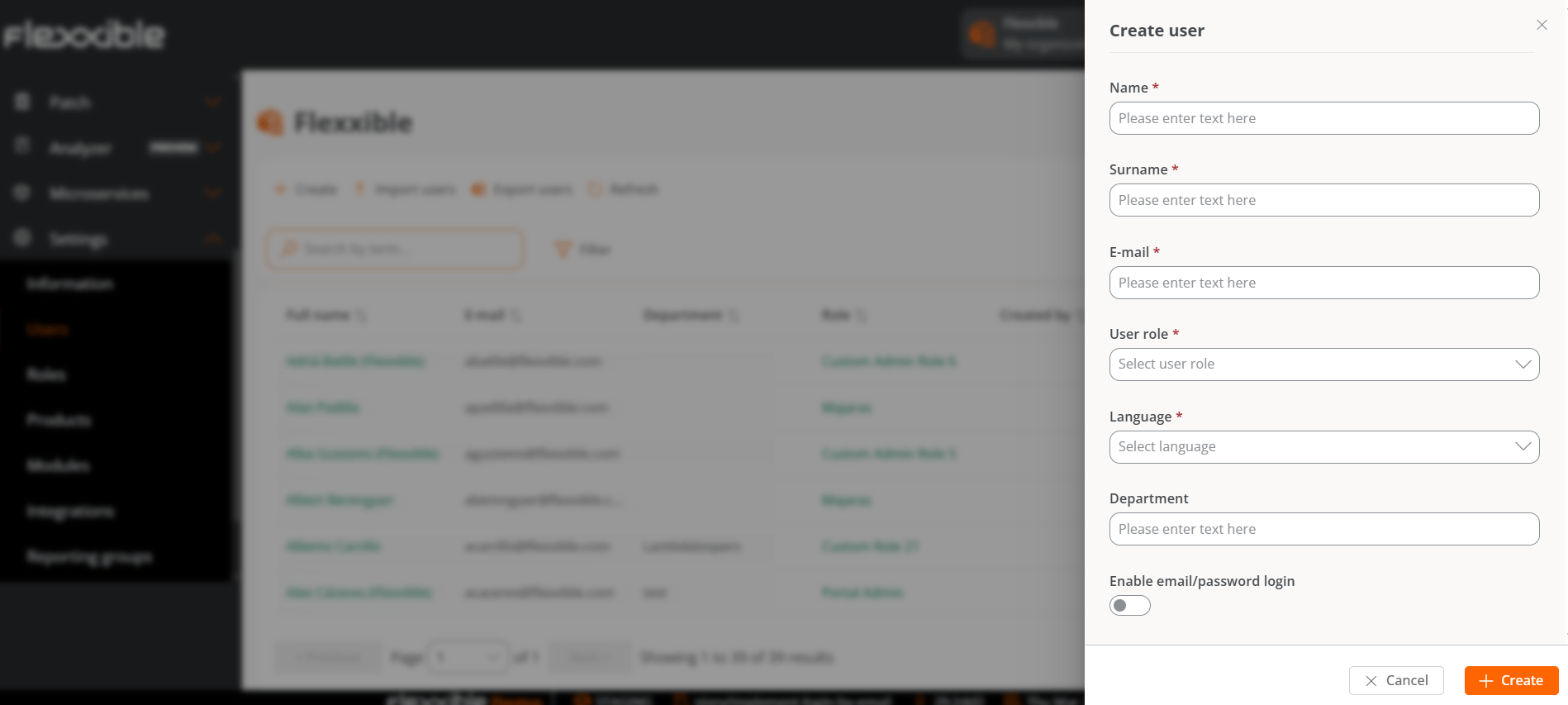
In the list view, the **New** button will open a window with a form to fill in the fields with the information for a new user. In addition to the first name, last name, and email, you must assign them a [user role](./roles) with which they can access the platform, as well as the language they will use in the console and the department the user belongs to within the organization.
The table shows a list of all users in an organization. Each row provides the following information:
* **Full name.** User's first and last name.
* **Email.** User's email.
* **Department.** Department the user belongs to within their organization.
* **Role.** [Role type](./roles) assigned to the user.
* **Email sign-in.** Indicates whether the user has sign-in to the Flexxible consoles **Enabled** or **Disabled** using an email address and password.
* **Created by.** Name of the person who created the user.
* **Updated by.** Name and email address of the last user who updated the information.
* **View details.** Opens a form to edit the user's data and even delete it, depending on the role assigned to the user.
## Create users
In the list view, the **New** button will open a window with a form to fill in the fields with the information for a new user. In addition to the first name, last name, and email, you must assign them a [user role](./roles) with which they can access the platform, as well as the language they will use in the console and the department the user belongs to within the organization.
 ## Create a batch of users
If you want to add multiple users at the same time, you must click **Import users**. This action lets you select a file from the device. If you want to perform a bulk import, Flexxible recommends first exporting to obtain the Excel file with the appropriate format. From there, you only need to complete it with the required changes and finally import it.
### Export users
To export the list of users displayed in the list view, simply press **Export users**. This action will download an Excel file with the list of the organization's users and their respective data.
### Delete users
To delete a user:
1. Go to **Settings** → **Users**.
2. In the table, click **View details**.
To delete a batch of users:
1. Go to **Settings** → **Users**.
2. Select the users you want to remove.
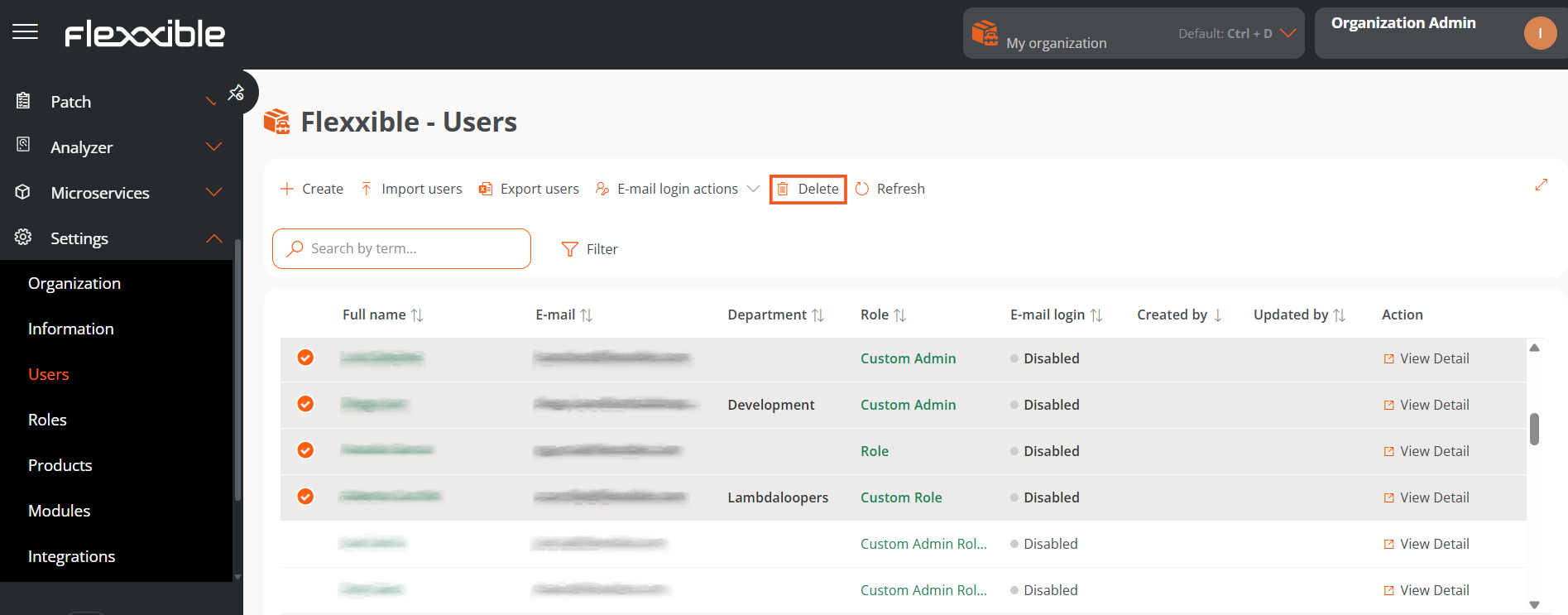
3. In the top menu, the **Delete** button will be enabled.
4. Click **Delete**.
## Create a batch of users
If you want to add multiple users at the same time, you must click **Import users**. This action lets you select a file from the device. If you want to perform a bulk import, Flexxible recommends first exporting to obtain the Excel file with the appropriate format. From there, you only need to complete it with the required changes and finally import it.
### Export users
To export the list of users displayed in the list view, simply press **Export users**. This action will download an Excel file with the list of the organization's users and their respective data.
### Delete users
To delete a user:
1. Go to **Settings** → **Users**.
2. In the table, click **View details**.
To delete a batch of users:
1. Go to **Settings** → **Users**.
2. Select the users you want to remove.
3. In the top menu, the **Delete** button will be enabled.
4. Click **Delete**.
 ### Email sign-in actions
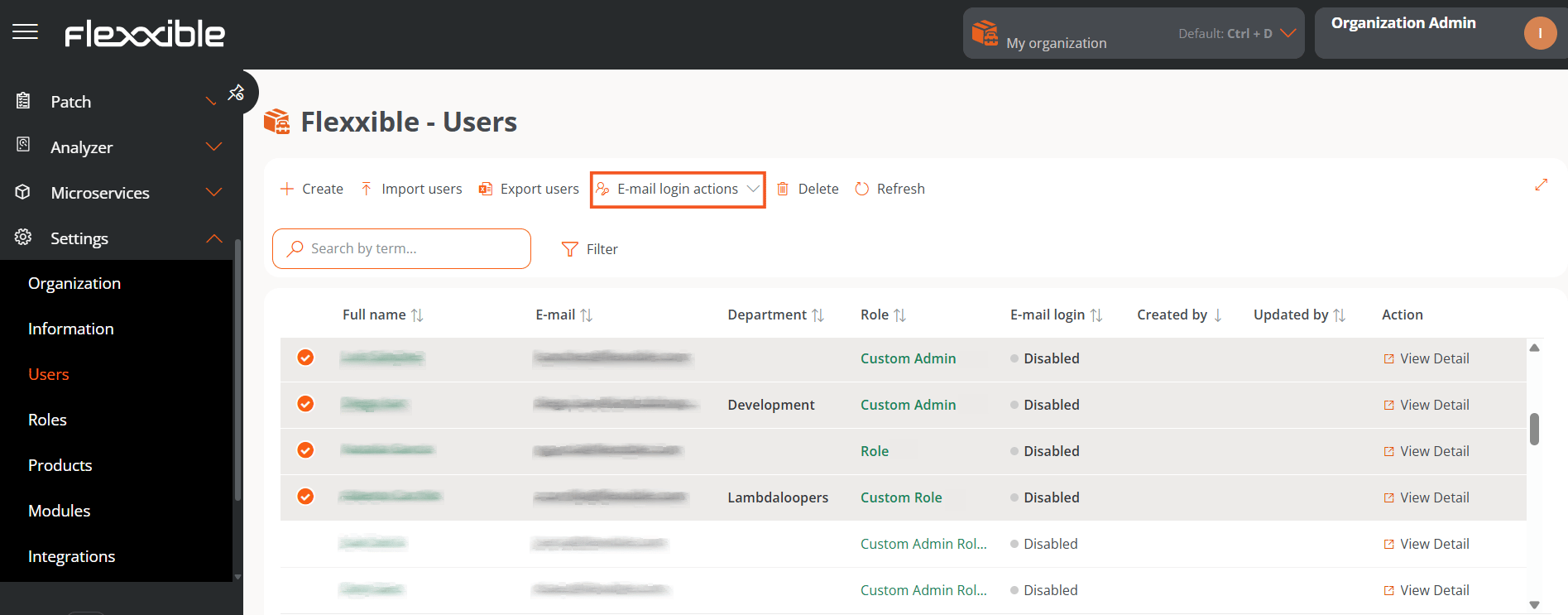
Users with the Organization administrator permission can enable email and password sign-in for the users in the organization.
### Email sign-in actions
Users with the Organization administrator permission can enable email and password sign-in for the users in the organization.
 ## Additional options
The options menu in the list view also lets you **Reload the table**; this is a very useful option when you want to update the list of users, especially when new ones have been created or imported from an Excel file.
The **Search by term** field lets you perform more precise searches; just enter words that match some of the users' data to quickly access them.
**Filter** is a more complete alternative for accessing specific users based on the fields corresponding \*\*to their data: full name, email, department, or role.
## Additional options
The options menu in the list view also lets you **Reload the table**; this is a very useful option when you want to update the list of users, especially when new ones have been created or imported from an Excel file.
The **Search by term** field lets you perform more precise searches; just enter words that match some of the users' data to quickly access them.
**Filter** is a more complete alternative for accessing specific users based on the fields corresponding \*\*to their data: full name, email, department, or role.