> ## Documentation Index
> Fetch the complete documentation index at: https://docs.flexxible.com/llms.txt
> Use this file to discover all available pages before exploring further.
# Reporting groups
**Reporting groups** let you create and manage groupings of devices within the same organization using different criteria. Their purpose is to cover specific needs of departments, sites, or user groups.
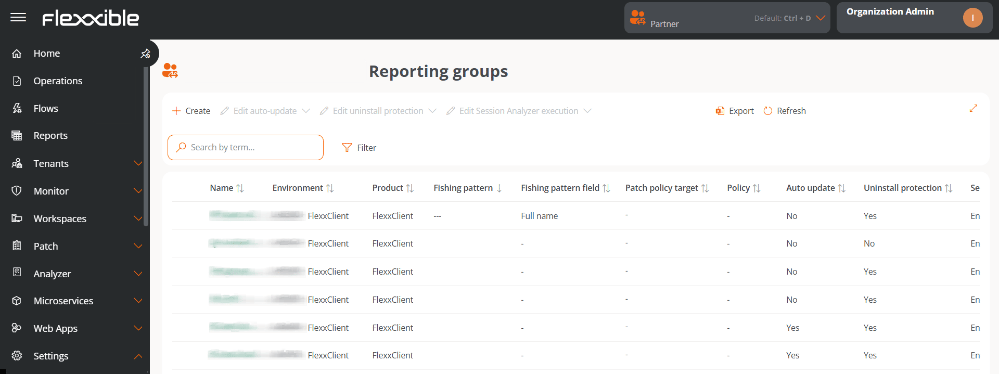 With this functionality, you can:
* View which users and roles have access to each group.
* See which devices are part of the group.
* Assign an updates policy.
* Enable or modify remote assistance features configured via FlexxAgent.
* Define a fishing pattern to automate device onboarding.
## Creating a reporting group
1. Go to → **Settings** → **Reporting groups**.
2. Click **New**.
3. Fill in the form with the following fields:
* **Name.** Group identifier.
* **Environment.** Dropdown to choose the environment.
* **Fishing pattern.** Regular expression (RegEx) used to automate the inclusion of devices based on the content of the attribute selected in the *Search pattern field*. The pattern evaluates the value stored in that attribute, whether text, numbers, or any other string represented in it.
In versions prior to FlexxAgent 25.10, the fishing pattern is applied only to the device name.
* **Search pattern field.** Device attribute against which the regular expression configured in the fishing pattern will be applied.
* **Patch policy target.** Updates policy assigned to the group.
### Fishing pattern
The fishing pattern lets you define regular expressions (RegEx) compatible with Java 8 to automatically add devices to a reporting group.
The configured expression is compared against the content (value) of the attribute selected in the Search pattern field, whether text, numbers, or any other string represented in that field. It can be used to search for exact matches, texts that start or end in a specific way, or more advanced patterns. For partial matches, `*` can be used as a wildcard to indicate preceding or following content.
#### Examples:
| RegEx | Matches... |
| --------- | ---------------------------------------- |
| `.*2023$` | any text ending in **2023**. |
| `.*abc.*` | any text containing **abc**. |
| `^item` | texts starting with **item**. |
| `\d{3}` | strings made up of exactly three digits. |
To create and test regular expressions before configuring them in the production environment, Flexxible recommends using specialized tools such as [Regex101](https://regex101.com).
#### Considerations
* The system runs an automatic process **every hour** that searches for devices whose attribute value matches the configured expression. If it finds them, it adds them to the corresponding reporting group.
* Regular expressions can have a maximum length of 250 characters.
* It is recommended to periodically review active expressions to avoid overlaps and conflicts between groups.
### Search pattern field
This field determines which device attribute the regular expression defined in the fishing pattern will be applied to.
#### Available options
* **Full name.** Applies the expression to the device's full name.
* **Description.** Applies the expression to the content of the device description field.
* **OU.** Applies the expression to the organizational unit.
* **Current subnet.** Applies the expression to the current subnet string of the device.
With this functionality, you can:
* View which users and roles have access to each group.
* See which devices are part of the group.
* Assign an updates policy.
* Enable or modify remote assistance features configured via FlexxAgent.
* Define a fishing pattern to automate device onboarding.
## Creating a reporting group
1. Go to → **Settings** → **Reporting groups**.
2. Click **New**.
3. Fill in the form with the following fields:
* **Name.** Group identifier.
* **Environment.** Dropdown to choose the environment.
* **Fishing pattern.** Regular expression (RegEx) used to automate the inclusion of devices based on the content of the attribute selected in the *Search pattern field*. The pattern evaluates the value stored in that attribute, whether text, numbers, or any other string represented in it.
In versions prior to FlexxAgent 25.10, the fishing pattern is applied only to the device name.
* **Search pattern field.** Device attribute against which the regular expression configured in the fishing pattern will be applied.
* **Patch policy target.** Updates policy assigned to the group.
### Fishing pattern
The fishing pattern lets you define regular expressions (RegEx) compatible with Java 8 to automatically add devices to a reporting group.
The configured expression is compared against the content (value) of the attribute selected in the Search pattern field, whether text, numbers, or any other string represented in that field. It can be used to search for exact matches, texts that start or end in a specific way, or more advanced patterns. For partial matches, `*` can be used as a wildcard to indicate preceding or following content.
#### Examples:
| RegEx | Matches... |
| --------- | ---------------------------------------- |
| `.*2023$` | any text ending in **2023**. |
| `.*abc.*` | any text containing **abc**. |
| `^item` | texts starting with **item**. |
| `\d{3}` | strings made up of exactly three digits. |
To create and test regular expressions before configuring them in the production environment, Flexxible recommends using specialized tools such as [Regex101](https://regex101.com).
#### Considerations
* The system runs an automatic process **every hour** that searches for devices whose attribute value matches the configured expression. If it finds them, it adds them to the corresponding reporting group.
* Regular expressions can have a maximum length of 250 characters.
* It is recommended to periodically review active expressions to avoid overlaps and conflicts between groups.
### Search pattern field
This field determines which device attribute the regular expression defined in the fishing pattern will be applied to.
#### Available options
* **Full name.** Applies the expression to the device's full name.
* **Description.** Applies the expression to the content of the device description field.
* **OU.** Applies the expression to the organizational unit.
* **Current subnet.** Applies the expression to the current subnet string of the device.
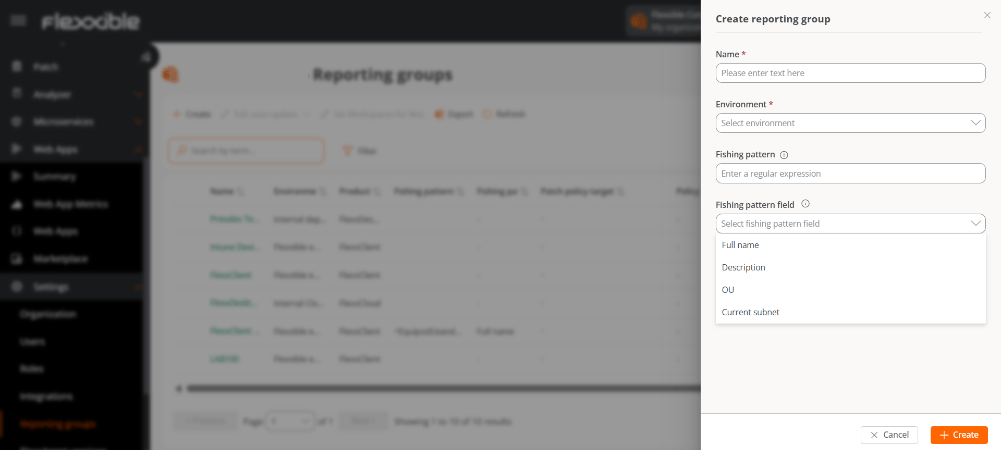 The **Search pattern field** is available starting with FlexxAgent version 25.10.
In earlier versions, the fishing pattern is applied only to the device name.
## FlexxAgent automatic update
Lets you enable the automatic update of FlexxAgent on the devices belonging to a group.
### Configuration
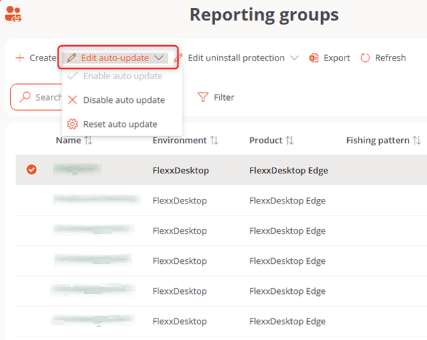
1. In the reporting groups table, select the group (or groups) you want to configure.
2. Click **Edit automatic update**.
3. Choose one of the following options:
* *Enable automatic update*
* *Disable automatic update*
* *Reset automatic update*
The **Search pattern field** is available starting with FlexxAgent version 25.10.
In earlier versions, the fishing pattern is applied only to the device name.
## FlexxAgent automatic update
Lets you enable the automatic update of FlexxAgent on the devices belonging to a group.
### Configuration
1. In the reporting groups table, select the group (or groups) you want to configure.
2. Click **Edit automatic update**.
3. Choose one of the following options:
* *Enable automatic update*
* *Disable automatic update*
* *Reset automatic update*
 In organizations with the FlexxAgent Version feature active, the automatic update always points to the Production environment, not Early.
## Uninstall protection
This functionality prevents users from uninstalling FlexxAgent from the device. It can also be applied at the **Product** level.
### Cases in which the protection is active
* The functionality is enabled in the reporting group it belongs to.
* The functionality is inactive at the reporting group level (neither enabled nor disabled), but it is enabled at the Product level.
### Requirements
* The configuration can only be performed by a user with the *Organization administrator* role.
* Available starting with FlexxAgent version 25.4.2.
### Configuration
The functionality can be enabled in one or more groups:
1. Go to **Settings** → **Reporting groups**.
2. Select the group and in the **Action** field click **Agent settings**.
3. Edit the **Uninstall protection** option using the edit button.
4. Click **Save**.
Reporting groups inherit the configuration made at the **Product** level; however, they can override it.
In organizations with the FlexxAgent Version feature active, the automatic update always points to the Production environment, not Early.
## Uninstall protection
This functionality prevents users from uninstalling FlexxAgent from the device. It can also be applied at the **Product** level.
### Cases in which the protection is active
* The functionality is enabled in the reporting group it belongs to.
* The functionality is inactive at the reporting group level (neither enabled nor disabled), but it is enabled at the Product level.
### Requirements
* The configuration can only be performed by a user with the *Organization administrator* role.
* Available starting with FlexxAgent version 25.4.2.
### Configuration
The functionality can be enabled in one or more groups:
1. Go to **Settings** → **Reporting groups**.
2. Select the group and in the **Action** field click **Agent settings**.
3. Edit the **Uninstall protection** option using the edit button.
4. Click **Save**.
Reporting groups inherit the configuration made at the **Product** level; however, they can override it.
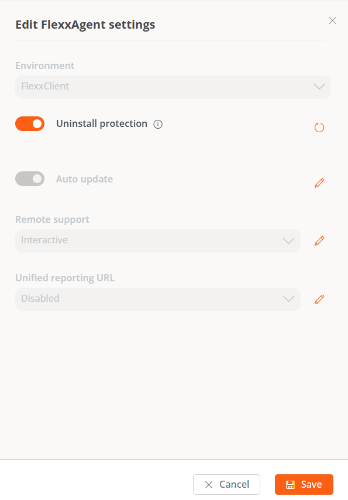 For more information, see the documentation on **Uninstall protection**.
## Configure devices for Wake on LAN (WoL)
This functionality lets you define the specific devices that will perform the automatic power-on via Wake on LAN (WoL) in the selected reporting groups.
### Configuration
You can configure up to three devices for WoL execution, in case the process fails on any of them.
1. In the table, select one (or more) reporting groups.
2. Click **Configure workspaces for WoL**.
3. In the form, select the preferred devices that will be in charge of powering on the equipment via WoL.
4. Click **Save** to apply the changes.
For more information, see the documentation on **Uninstall protection**.
## Configure devices for Wake on LAN (WoL)
This functionality lets you define the specific devices that will perform the automatic power-on via Wake on LAN (WoL) in the selected reporting groups.
### Configuration
You can configure up to three devices for WoL execution, in case the process fails on any of them.
1. In the table, select one (or more) reporting groups.
2. Click **Configure workspaces for WoL**.
3. In the form, select the preferred devices that will be in charge of powering on the equipment via WoL.
4. Click **Save** to apply the changes.
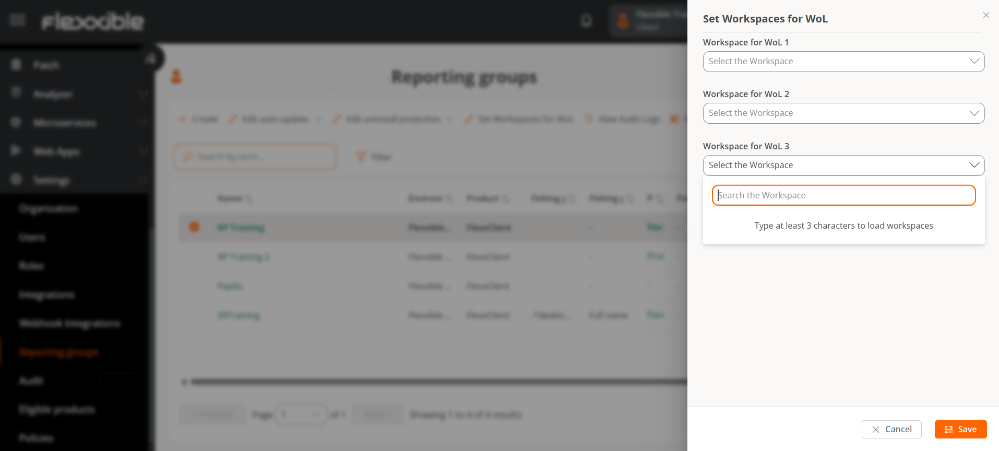 When you select several reporting groups and one or more of the three fields in the form are left empty, these will also be saved as empty in those groups that had values previously configured.
### Delete the WoL device configuration
To remove the devices associated with the WoL configuration:
1. Select the corresponding reporting group again.
2. Click **Configure workspaces for WoL**.
3. Leave the three fields with no values.
4. Click **Save** to confirm the deletion.
Schedule configuration is done at the **Workspace groups** level.
## View audit logs
Lets you access the organization's **Audit** view.
## Reporting groups list
The list view shows the reporting groups with the following information:
* Name
* Environment
* Product
* Fishing pattern
* Search pattern field
* Patch policy target
* Policy
* Automatic update
* Uninstall protection
* Action (View details and Agent settings)
### Details of a reporting group
When you access the details, several tabs are displayed:
### 1. Details
Contains the group's general information.
Through **Edit**, you can modify: *Name*, *Environment*, *Fishing pattern*, *Search pattern field*, and *Patch policy target*.
### 2. Roles
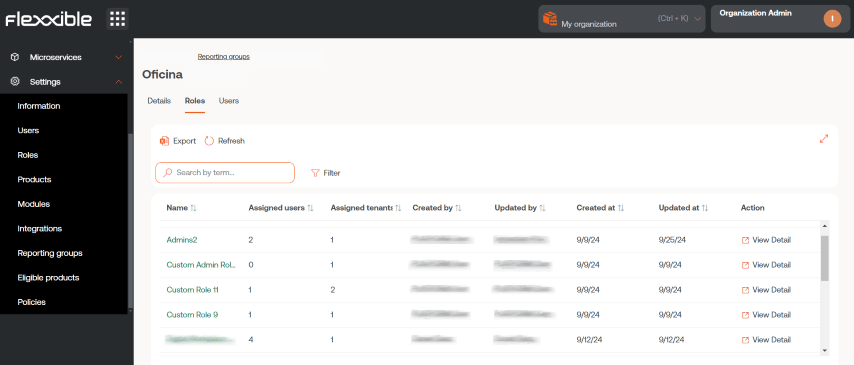
List of roles that can access the group. Includes:
* Name
* Assigned users
* Assigned tenants
* Created by
* Updated by
* Creation and update dates
* Action (Role details)
When you select several reporting groups and one or more of the three fields in the form are left empty, these will also be saved as empty in those groups that had values previously configured.
### Delete the WoL device configuration
To remove the devices associated with the WoL configuration:
1. Select the corresponding reporting group again.
2. Click **Configure workspaces for WoL**.
3. Leave the three fields with no values.
4. Click **Save** to confirm the deletion.
Schedule configuration is done at the **Workspace groups** level.
## View audit logs
Lets you access the organization's **Audit** view.
## Reporting groups list
The list view shows the reporting groups with the following information:
* Name
* Environment
* Product
* Fishing pattern
* Search pattern field
* Patch policy target
* Policy
* Automatic update
* Uninstall protection
* Action (View details and Agent settings)
### Details of a reporting group
When you access the details, several tabs are displayed:
### 1. Details
Contains the group's general information.
Through **Edit**, you can modify: *Name*, *Environment*, *Fishing pattern*, *Search pattern field*, and *Patch policy target*.
### 2. Roles
List of roles that can access the group. Includes:
* Name
* Assigned users
* Assigned tenants
* Created by
* Updated by
* Creation and update dates
* Action (Role details)
 ### 3. Users
List of users with access to the group. Includes:
* Full name
* Email
* Department
### 4. Devices
List of devices associated with the group. Includes:
* Name
* Intel vPro Enterprise (compatibility)
* IP address
* Operating system
* CPU cores
* RAM
* Type (physical or virtual)
* Last connected user
**5. Magic link**
Users with the Organization administrator role within a partner-type organization can generate and send **Magic links** to users so they can download FlexxAgent on their devices without requiring prior authentication.
This tab shows a table with the list of magic links created in the reporting group.
The **Create** button lets you generate magic links in the reporting group to streamline access to the FlexxAgent download on the devices, defining the expiration time in advance.
**Export** lets you export the list in .xlsx format, and **Refresh** updates the list of magic links displayed in the table.
The table provides specific data about the magic link created, such as the author, creation and expiration dates; and whether it has been revoked and when. From here you can also copy the created magic link to share it and revoke it when appropriate.
Magic links are available only for the FXXOne product.
### FlexxAgent configuration (Flexxible Assistance)
Administrators can define the type of remote assistance:
* Interactive (attended)
* Unattended
* Dynamic
* None
### 3. Users
List of users with access to the group. Includes:
* Full name
* Email
* Department
### 4. Devices
List of devices associated with the group. Includes:
* Name
* Intel vPro Enterprise (compatibility)
* IP address
* Operating system
* CPU cores
* RAM
* Type (physical or virtual)
* Last connected user
**5. Magic link**
Users with the Organization administrator role within a partner-type organization can generate and send **Magic links** to users so they can download FlexxAgent on their devices without requiring prior authentication.
This tab shows a table with the list of magic links created in the reporting group.
The **Create** button lets you generate magic links in the reporting group to streamline access to the FlexxAgent download on the devices, defining the expiration time in advance.
**Export** lets you export the list in .xlsx format, and **Refresh** updates the list of magic links displayed in the table.
The table provides specific data about the magic link created, such as the author, creation and expiration dates; and whether it has been revoked and when. From here you can also copy the created magic link to share it and revoke it when appropriate.
Magic links are available only for the FXXOne product.
### FlexxAgent configuration (Flexxible Assistance)
Administrators can define the type of remote assistance:
* Interactive (attended)
* Unattended
* Dynamic
* None
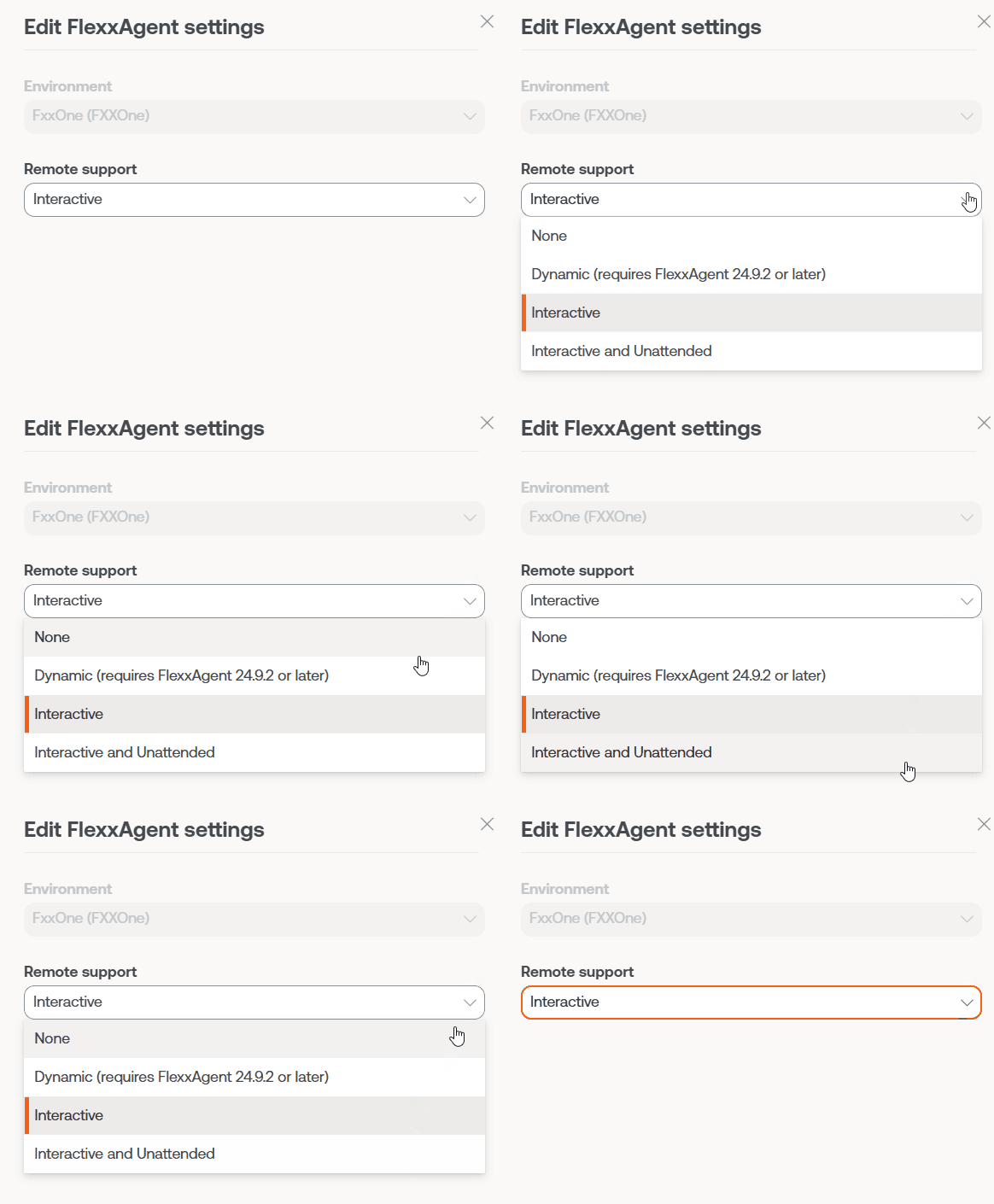 This configuration is set from **Products**. However, specific configurations can be made for reporting groups.
Some of the FlexxAgent configuration options are not visible to users with the Organization administrator role.
This configuration is set from **Products**. However, specific configurations can be made for reporting groups.
Some of the FlexxAgent configuration options are not visible to users with the Organization administrator role.